Leave Requests
ATTENDANCE permission required
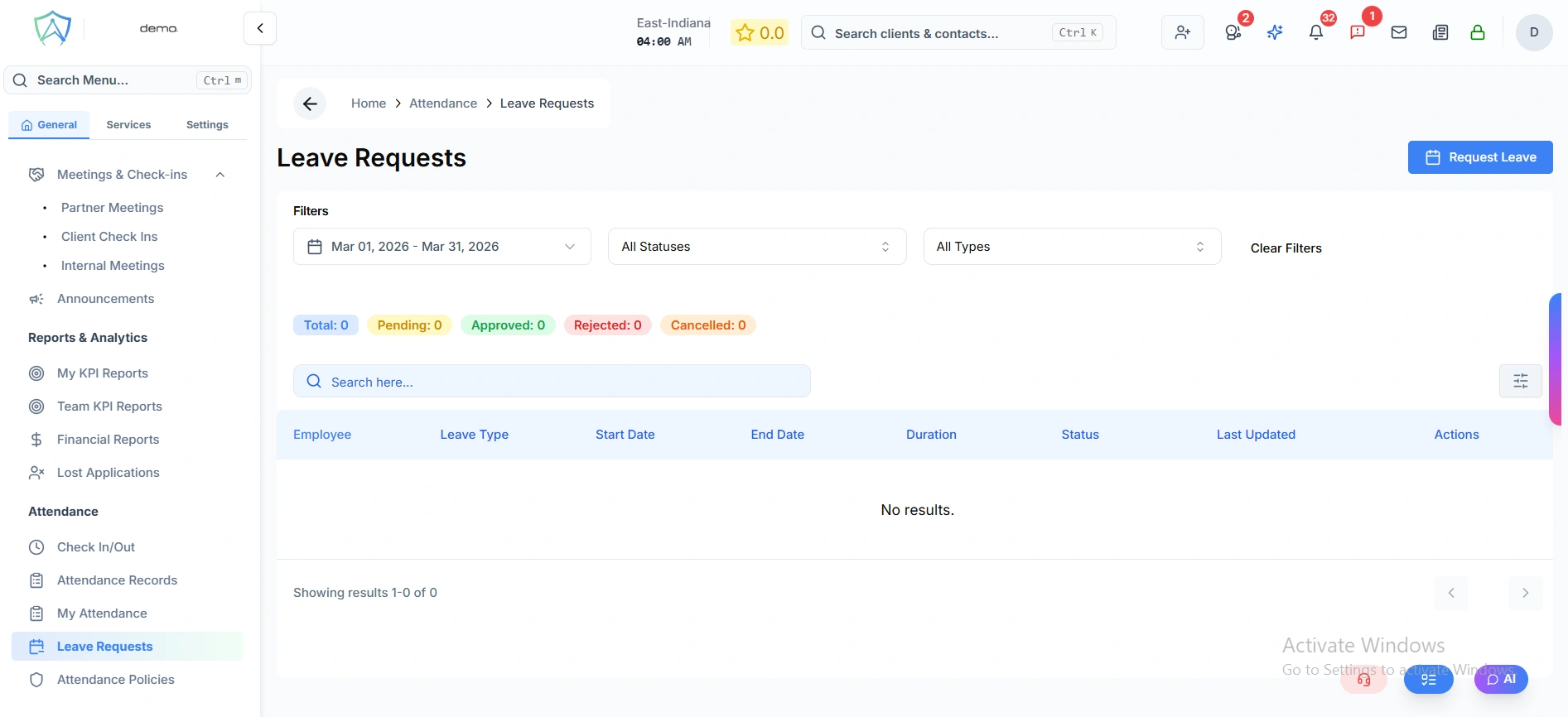
The Leave Requests page allows employees to submit leave applications and managers to review and approve them. You can easily track all leave requests, filter by date range, status, or leave type, and view real-time statistics.
Viewing Leave Requests
The main page displays all leave requests in a table with the following information:
- Employee - Name of the person requesting leave
- Leave Type - Type of leave (color-coded for easy identification)
- Start Date - First day of leave
- End Date - Last day of leave
- Duration - Number of days or "Half day" if applicable
- Status - Current approval status (Pending, Approved, Rejected, or Cancelled)
- Last Updated - When the request was last modified
Quick Statistics
At the top of the page, you'll see real-time counts showing:
- Total - All leave requests in the current filter
- Pending - Waiting for approval
- Approved - Confirmed by manager
- Rejected - Declined by manager
- Cancelled - Withdrawn by employee
Filtering Requests
Use the filter controls to narrow down the list:
- Date Range - Filter by start and end dates
- Status - Show only Pending, Approved, Rejected, or Cancelled requests
- Leave Type - Filter by specific leave category
- Search - Find requests by employee name
- Click Clear Filters to reset all filters
Submitting a Leave Request
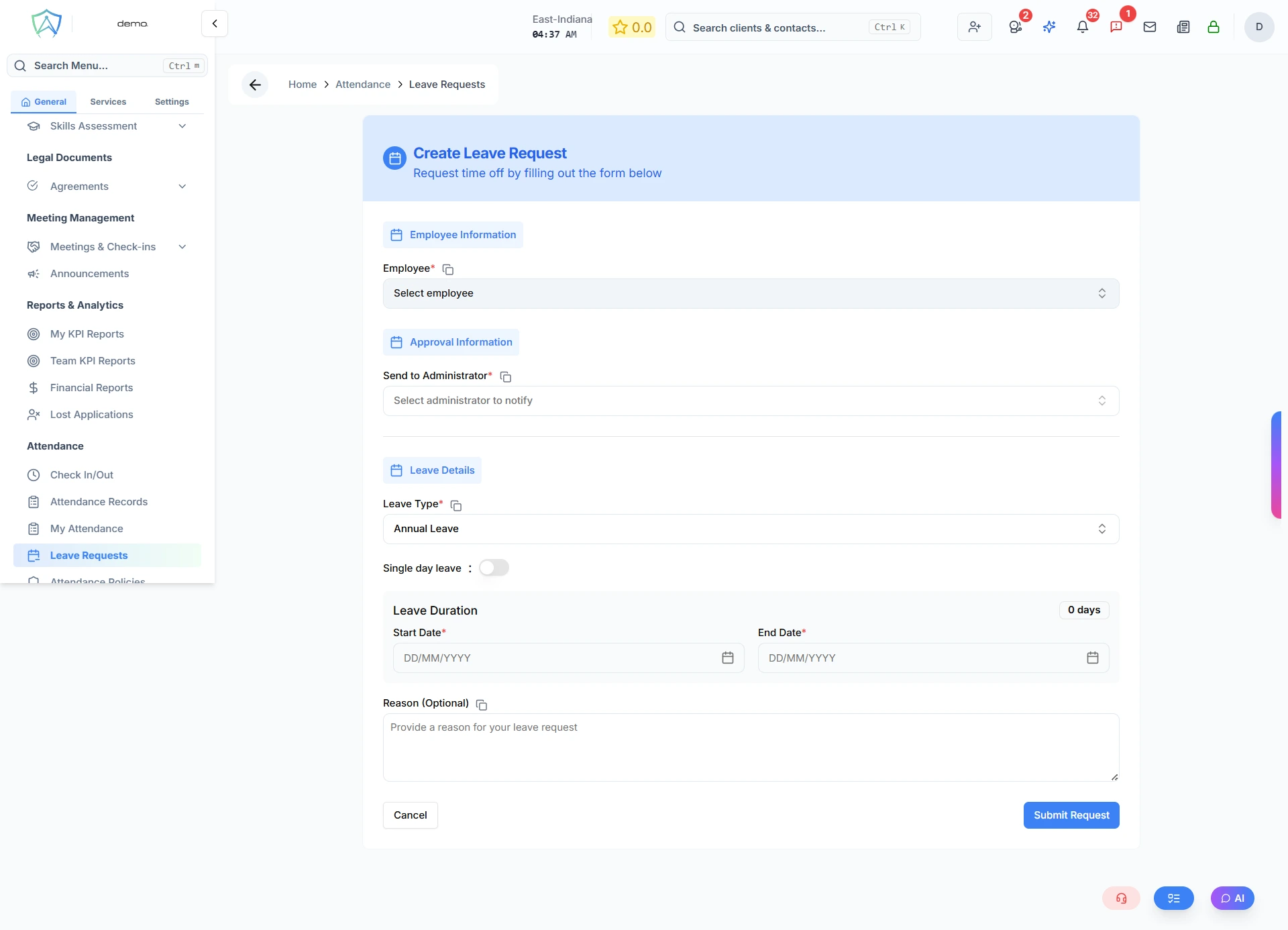
- Click the Request Leave button in the top-right corner
- Fill in the required fields (see field descriptions below)
- Click Submit
Your selected administrator will be notified via email to review your request.
Form Fields
Employee (Managers only, required)
- Select the employee for whom you're submitting the leave request
Send to Administrator (Required)
- Select which administrator will receive and approve this request
Leave Type (Required)
- Annual - Paid vacation/annual leave
- Sick - Medical or sick leave
- Maternity - Maternity leave
- Paternity - Paternity leave
- Bereavement - Compassionate leave for family loss
- Unpaid - Unpaid time off
- Substitute - Compensatory leave for working on rest days
- Other - Other approved leave types
Single Day Leave (Toggle)
- Enable for one day of leave, disable for multiple days
Half Day Leave (Toggle, only when single day is enabled)
- Enable to request only half a day off
Half Day Type (Required when half day is enabled)
- First Half - Morning session
- Second Half - Afternoon session
Date Selection
- For single day: Select one date
- For multiple days: Select start date and end date
- Duration is calculated automatically
Reason (Optional)
- Provide an explanation for your leave request
Leave Types
The system supports the following leave types:
| Leave Type | Description | Badge Color |
|---|---|---|
| Annual | Paid vacation/annual leave | Blue |
| Sick | Medical or sick leave | Red |
| Maternity | Maternity leave | Pink |
| Paternity | Paternity leave | Indigo |
| Bereavement | Compassionate leave for family loss | Purple |
| Unpaid | Unpaid time off | Orange |
| Other | Other approved leave types | Gray |
Leave Request Status
Each request goes through the following status lifecycle:
| Status | Description | Badge Color |
|---|---|---|
| Pending | Submitted and awaiting manager approval | Yellow |
| Approved | Manager has approved your leave | Green |
| Rejected | Manager has declined the request | Red |
| Cancelled | Request was withdrawn or cancelled | Orange |
Half-Day Leave
The system supports half-day leave requests:
- Morning Half - Leave for the morning session
- Afternoon Half - Leave for the afternoon session
When viewing requests, half-day leaves will show "Half day (Morning Half)" or "Half day (Afternoon Half)" instead of a full day count.
Manager Actions
Managers with appropriate permissions can:
- View any leave request to see full details
- Edit pending requests if needed
- Approve pending leave applications
- Reject leave requests with optional feedback
- Cancel approved leave if circumstances change
- Review team availability before approving requests
Managers see all team members' requests, while employees see only their own submissions.
Viewing Request Details
Click on any Employee Name in the table to open the detailed view of that leave request. This shows:
- Full leave information
- Reason for leave
- Any attached supporting documents
- Approval history and notes