Lead Management
MARKETING permission required
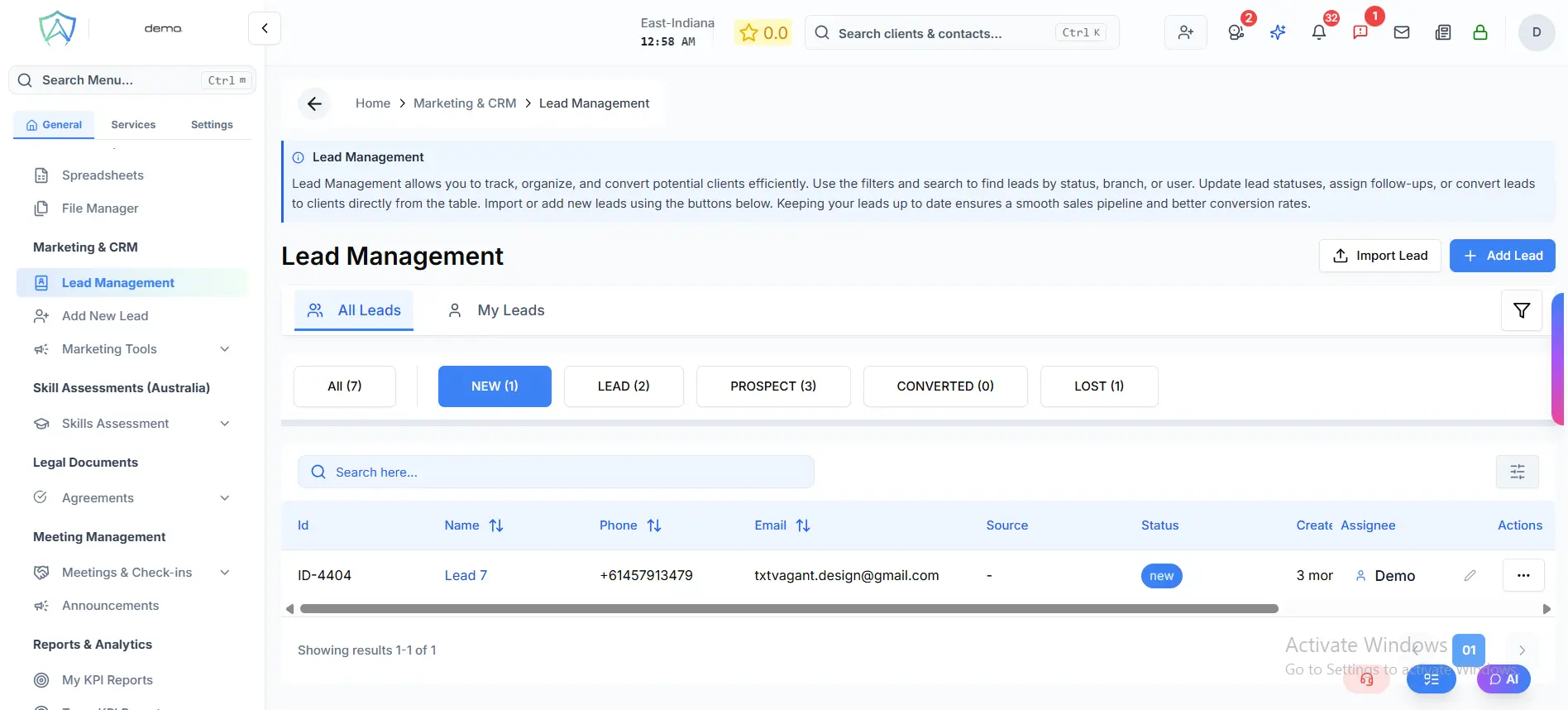
The Lead Management section is your CRM pipeline for prospective clients. Use it to track enquiries from initial contact through to conversion as a paying client.
Pipeline Stages
Leads move through five stages:
| Stage | Displayed As | Description |
|---|---|---|
| New | NEW | Fresh enquiry, not yet worked |
| Lead | LEAD | Contact has been qualified as a lead |
| Prospect | PROSPECT | Actively being pursued |
| Customer | CONVERTED | Lead has been converted to a client |
| Lost | LOST | Lead decided not to proceed |
Moving a lead to Lost requires an additional confirmation step where you can record the reason for the loss.
Lead List View
All leads are displayed in a table with the following columns:
- Id — unique contact reference (e.g.
ID-123) - Name — full name; displays a follow-up reminder badge if a follow-up is scheduled (showing the assigned agent and due date)
- Phone
- Source — how the lead was acquired
- Status — current pipeline stage
- Created At — how long ago the lead was added
- Last Updated — date and time of the most recent change
The table supports CSV export and column sorting (Name, Phone, Email, Last Updated).
Filtering and Searching
Use the controls at the top of the list to narrow down leads:
- All Leads / My Leads — toggle between all leads in the organisation and only leads assigned to you. Your preference is saved automatically.
- Search — search by name, phone, email, or other text fields
- Advanced Filters (filter icon) — filter by Branch
- Status tabs — click any status tab (All, New, Lead, Prospect, Converted, Lost) to show only leads at that stage, along with a count for each
When viewing the Lost tab, a View Details button appears in the top right, linking to a detailed Lost Leads report.
Lead Actions
Click the ⋯ button on any row to open the action menu:
- Follow Up — schedule a follow-up task linked to this lead
- Convert to Client — creates a new client profile pre-filled with the lead's details and marks the lead as Converted
- Move to [stage] — move the lead directly to any other pipeline stage
Adding and Importing Leads
Use the buttons in the top right of the page:
- Add Lead — manually create a new lead record
- Import Lead — bulk import leads from a file