Attendance Records
ATTENDANCE permission required — Available to managers and administrators
The Attendance Records page gives managers and administrators a complete view of attendance history across the organization, including check-in/out times, working hours, overtime, and attendance status.
Page Layout
The page has two main tabs:
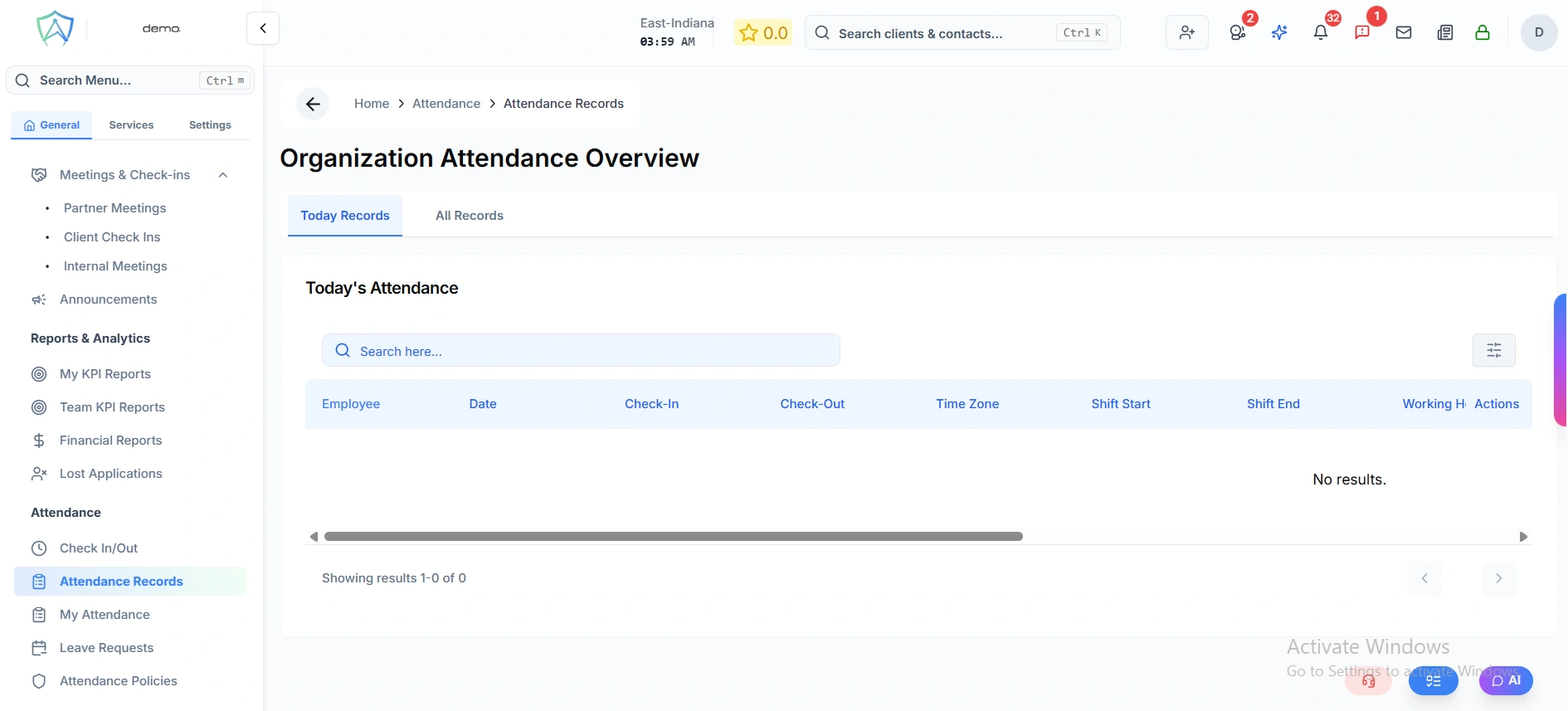
1. Today Records
Shows all attendance records for the current day, providing real-time visibility of who has checked in and who hasn't yet checked out.
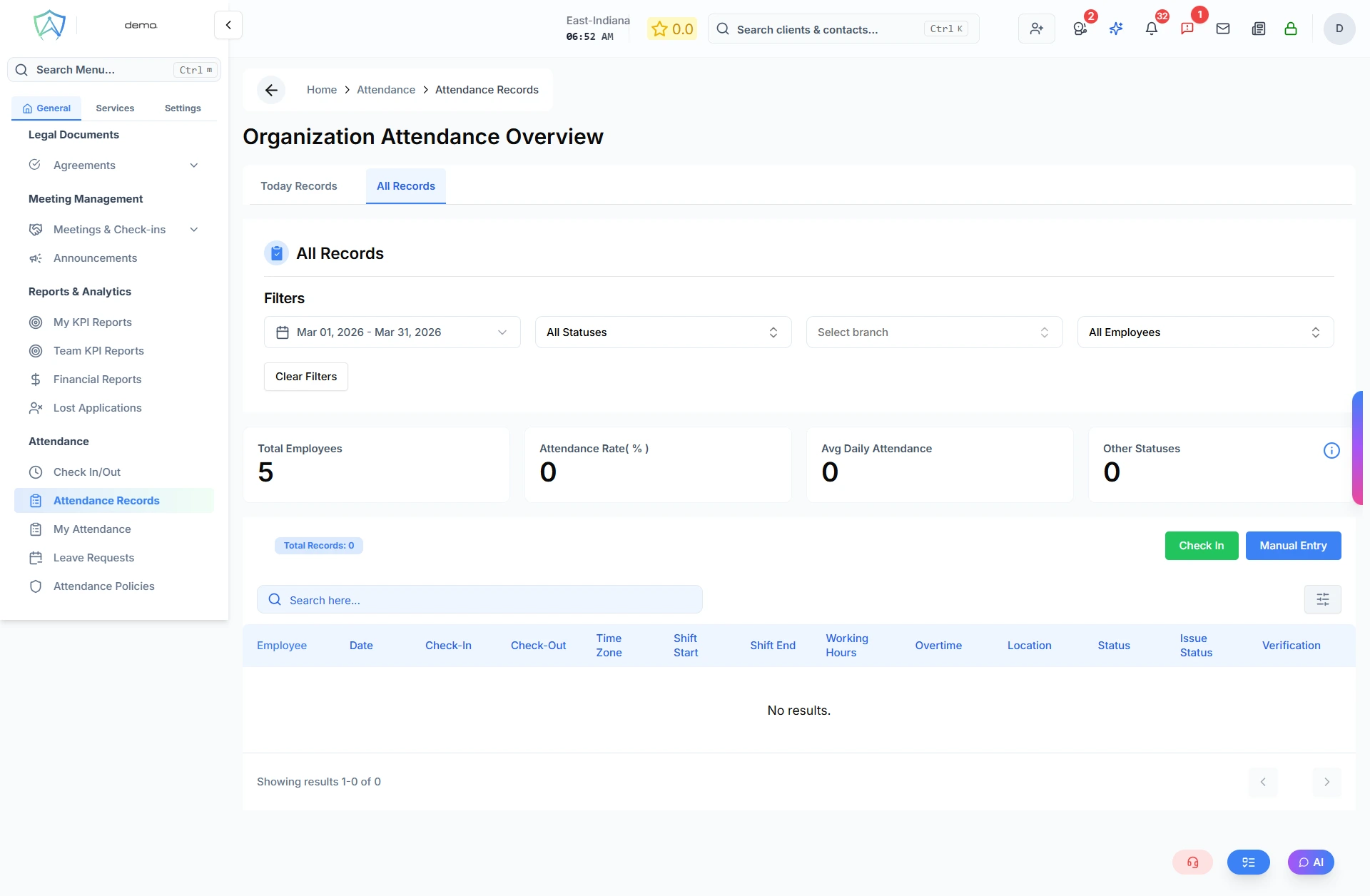
2. All Records
Shows historical attendance records with advanced filtering and organization-level overview statistics.
Records Table
The attendance table displays the following columns:
| Column | Description |
|---|---|
| Employee | Employee name (clickable - opens detailed attendance view) |
| Date | The date of the attendance record |
| Check In | Time the employee checked in (in 12-hour format with AM/PM) |
| Check Out | Time the employee checked out (shows "-" if not yet checked out) |
| Time Zone | User's timezone based on check-in location |
| Shift Start | Scheduled shift start time from attendance policy |
| Shift End | Scheduled shift end time from attendance policy |
| Working Hours | Total hours worked (calculated from check-in to check-out time) |
| Overtime | Overtime hours beyond scheduled shift |
| Location | Office location name where check-in occurred |
| Status | Present / Late / Absent / Half-Day / On Leave / Work From Home |
| Issue Status | Shows if employee raised a dispute or if issue was resolved |
| Verification | Method used for check-in (Geolocation / Manual / etc.) |
Table Features
- Search: Search by employee name, location, or status
- Sort: Click column headers to sort by check-in time, check-out time, or status
- Pagination: Navigate through records with page controls
- Quick Actions:
- Click employee name to view their detailed attendance history
- Click Check Out button for employees who haven't checked out yet
- Delete records (admin only)
Filtering
All Records Tab Filters
Filter records by:
- Date Range - Select start and end dates to view specific time periods
- Status - Filter by attendance status:
- All Statuses
- Present
- Late
- Absent
- Half Day
- On Leave
- Work From Home
- Branch - Filter by specific office branch
- Employee - Select specific employee (available to global managers and admins only)
Clear Filters button resets all filters to defaults.
User Statistics
When filtering by a specific employee, you'll see attendance statistics badges showing:
- Total Records
- Present Days
- Absent Days
- Late Days
- Half Days
- Leave Days
- Work From Home Days
Organization Attendance Overview
All Records tab includes an overview section showing organization-wide statistics for the selected date range and branch:
- Total attendance metrics
- Status breakdown
- Trends and patterns
Quick Actions
Check In
Click the Check In button to open a new check-in window. Available to all users with attendance permission.
Manual Entry (Admin Only)
Administrators can click Manual Entry to:
- Create new attendance records for employees who forgot to check in/out
- Edit existing attendance records
- Correct check-in or check-out times
- Set attendance status manually
- Add explanatory notes
Detailed Employee View
Click on any employee name to view their detailed attendance page, which includes:
- Full attendance history
- Calendar view
- Detailed statistics
- Leave summary
- Attendance patterns
Deleting Records
Administrators can delete attendance records if needed:
- Locate the record in the table
- Click the delete icon/button
- Confirm deletion in the dialog
Deleted records cannot be recovered. Consider editing the record instead if you need to make corrections.
Related
- Check In / Out - Daily check-in and check-out
- My Attendance - View personal attendance history
- Leave Requests - Manage leave applications
- Office Locations - Configure check-in locations
- Attendance Policies - Configure attendance rules and shift times