Attendance Policies
Required Role
ATTENDANCE permission with appropriate admin access
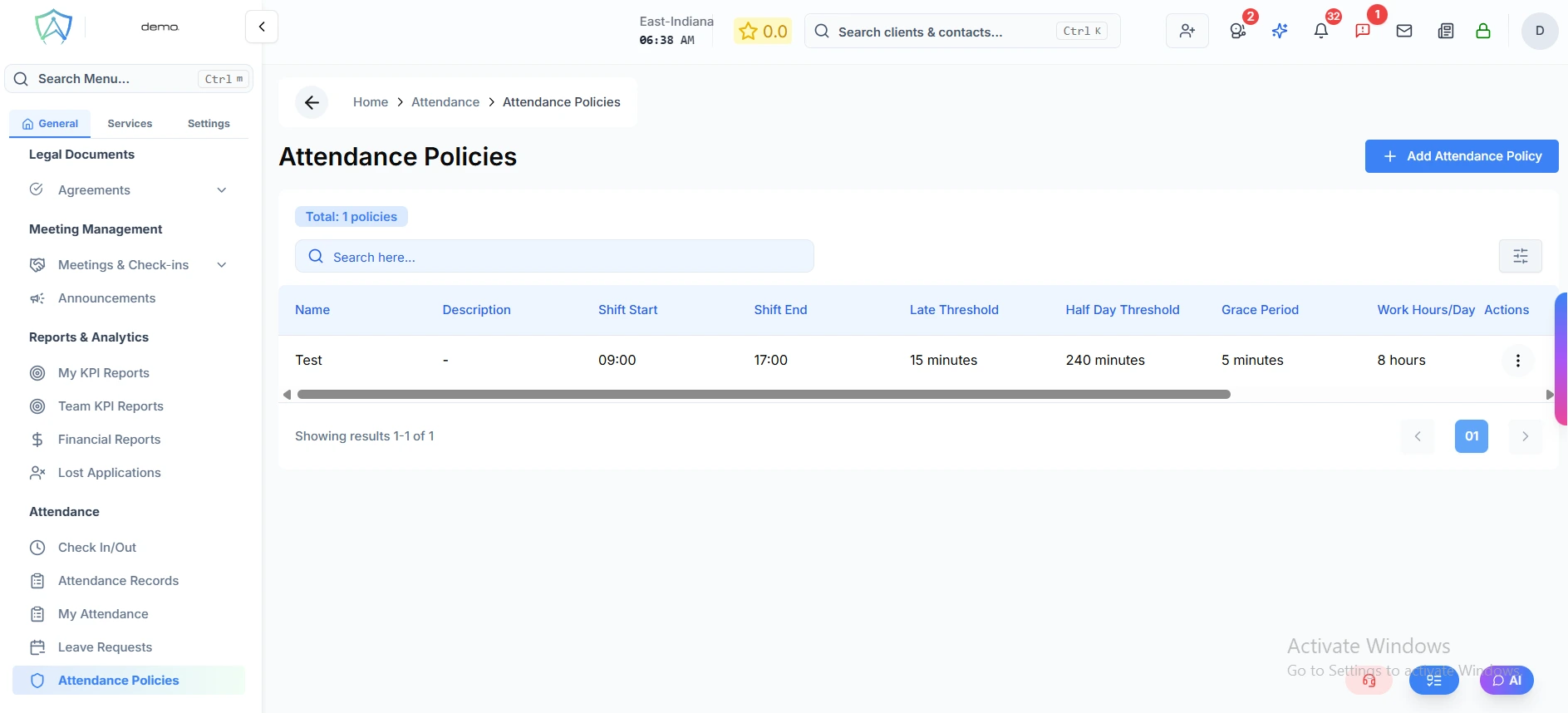
The Attendance Policies page displays your organization's attendance policies that define work hours, thresholds, and attendance rules for employees.
Viewing Policies
The page shows all attendance policies in a table with the following information:
- Name - Policy name (e.g., "Standard 9-5", "Flexible Hours")
- Description - Brief explanation of the policy
- Shift Start - Official shift start time
- Shift End - Official shift end time
- Late Threshold - Minutes after shift start before marked late
- Half Day Threshold - Minutes absent before marked as half day
- Grace Period - Minutes of grace before lateness applies
- Work Hours/Day - Expected working hours per day
- Auto-Mark Absent - Days before automatically marking absent
- Last Updated - When the policy was last modified
Quick Statistics
At the top, you'll see:
- Total - Number of attendance policies configured
Managing Policies (Admin Only)
Adding a New Policy
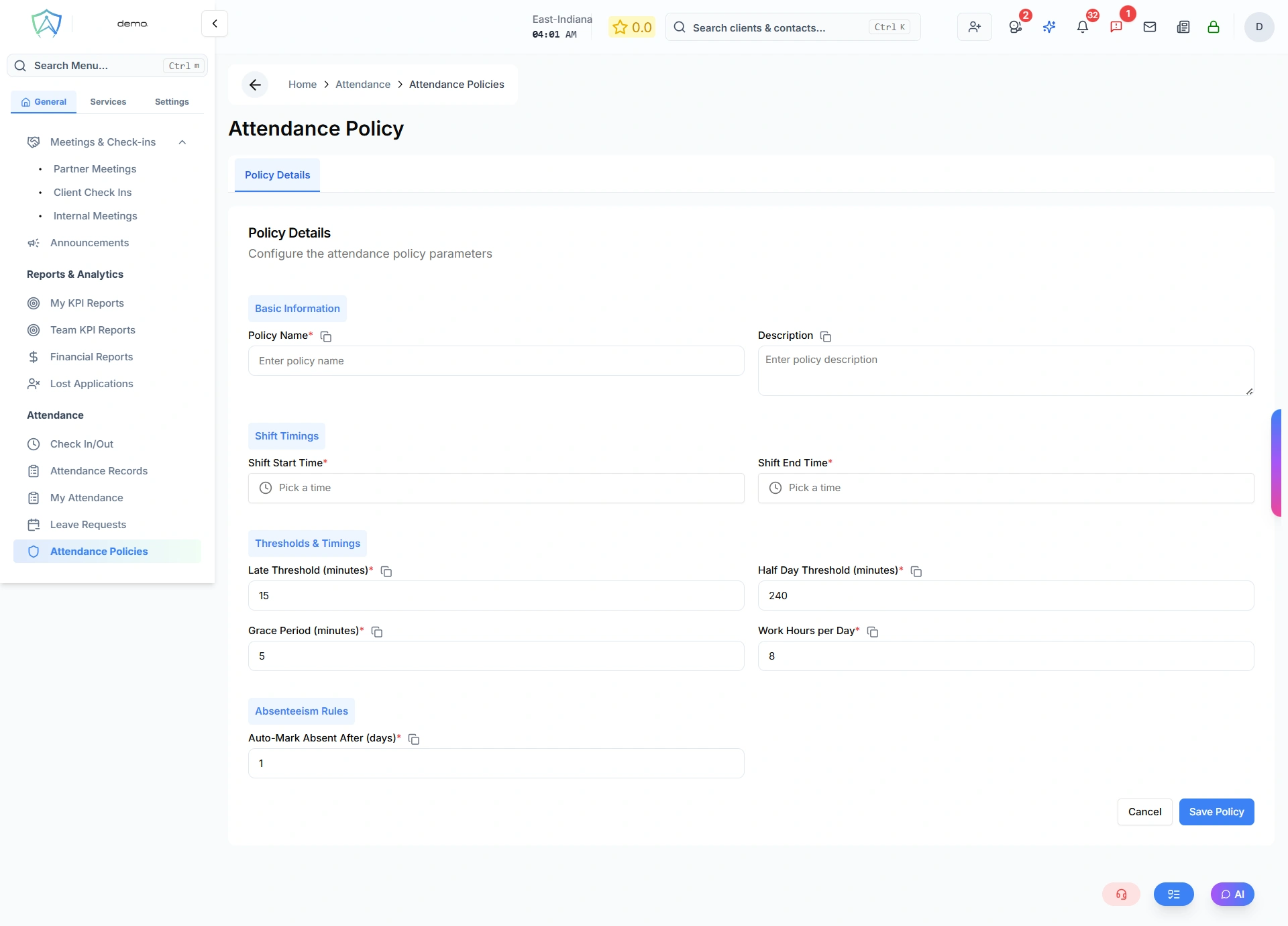
Administrators can create attendance policies:
- Click Add Attendance Policy button
- Fill in the policy details (see field descriptions below)
- Click Submit
Policy Form Fields
| Field Name | Description |
|---|---|
| Policy Name | Unique name to identify this attendance policy |
| Description | Optional brief explanation of the policy's purpose |
| Shift Start Time | Official start time of the work shift (e.g., 9:00 AM) |
| Shift End Time | Official end time of the work shift (e.g., 5:30 PM) |
| Late Threshold | Minutes after shift start when employee is marked late |
| Half Day Threshold | Minutes of absence before marking as half day |
| Grace Period | Minutes of grace allowed before lateness applies |
| Work Hours per Day | Standard working hours expected per day |
| Auto-Mark Absent After | Days of no attendance before auto-marking as absent |
Editing a Policy
Global managers can modify existing policies:
- Click the Edit icon on any policy row
- Update the policy details
- Save changes
Deleting a Policy
Global managers can remove policies:
- Click the Delete icon on any policy row
- Confirm the deletion
Assigning Policies (Edit Mode Only)
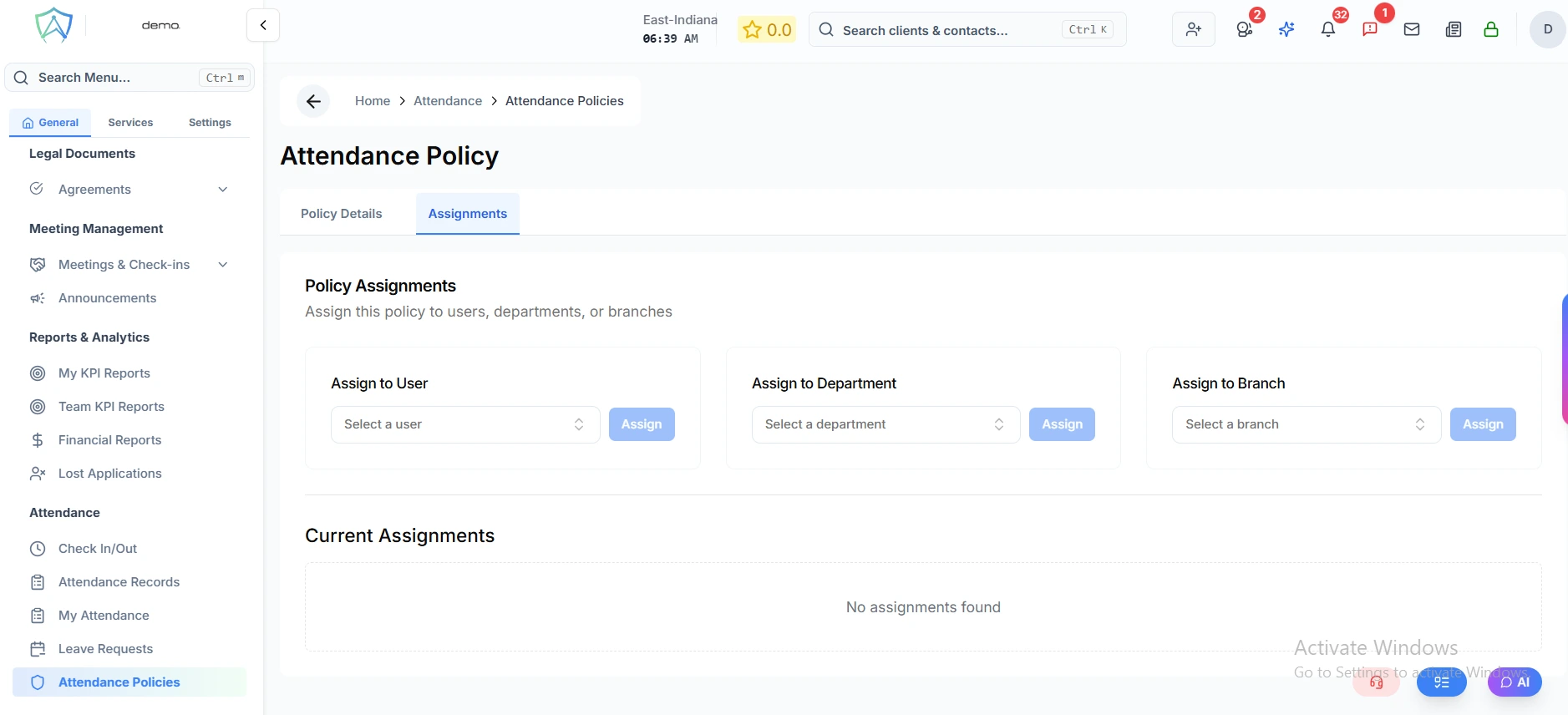
After creating a policy, you can assign it to specific users, departments, or branches:
- Click Edit on the policy
- Switch to the Assignments tab
- Choose assignment type:
- Assign to User - Apply policy to individual employees
- Assign to Department - Apply policy to all members of a department
- Assign to Branch - Apply policy to all employees in a branch
- Select the user/department/branch and click Assign
- View and manage current assignments in the table below
warning
Only users with global manager roles can edit or delete policies. Policies in use by employees should be reviewed before deletion.
Search & Filter
Use the search box to quickly find policies by name or description.