Advanced Lead Filter
Required Role
Admin Data Access roles required (Organisation, Global Manager, Country Manager, Branch Manager)
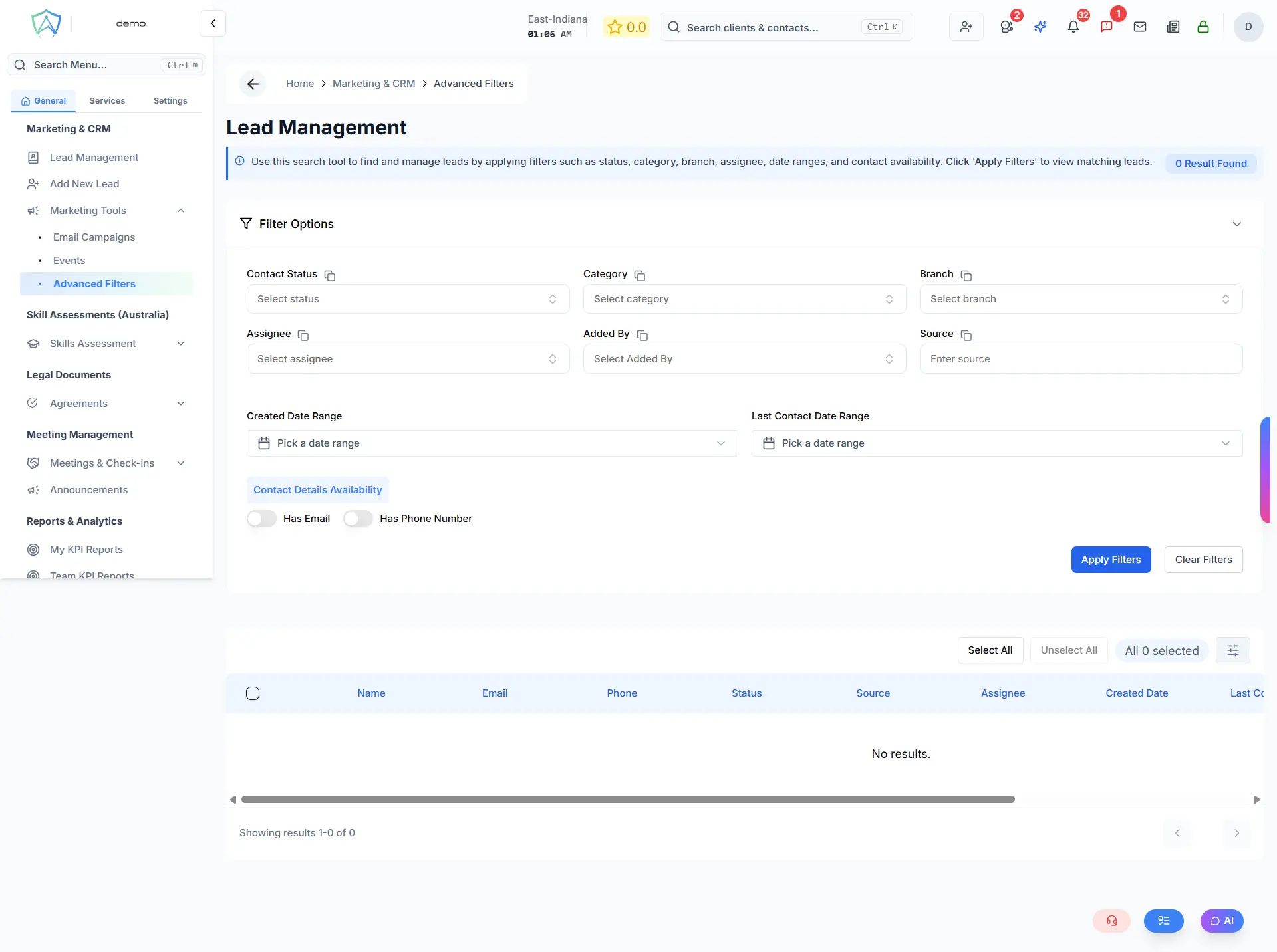
The Advanced Lead Filter page lets you search and segment your CRM leads using a combination of filters. Use it to find a precise audience for bulk email outreach or for focused lead management.
How It Works
- Expand the Filter Options panel
- Fill in one or more of the available filters
- Click Apply Filters — the matching leads are displayed in the table below with a total count
- Use Clear Filters to reset all filters and start over
All filters are combined together (AND logic) — adding more filters narrows the results further.
Available Filters
CRM Filters
| Filter | Type | Description |
|---|---|---|
| Contact Status | Dropdown | Filter by pipeline stage — All / New / Lead / Prospect / Converted / Lost |
| Category | Dropdown | Filter by contact type — All / Service Seeker / Service Provider / Organisation / Others |
| Branch | Dropdown (searchable) | Filter by the branch the lead belongs to |
| Assignee | Dropdown | Filter by the agent the lead is assigned to |
| Added By | Dropdown | Filter by the user who created the lead record |
| Source | Text | Filter by lead source (free text match) |
Date Range Filters
| Filter | Description |
|---|---|
| Created Date Range | Show leads created within a specific date range |
| Last Contact Date Range | Show leads whose last contact date falls within a range |
Contact Details Availability
| Toggle | Description |
|---|---|
| Has Email | Show only leads that have an email address recorded |
| Has Phone Number | Show only leads that have a phone number recorded |
Results Table
After applying filters, the matched leads are shown in a table with the following columns:
- Name — click to open the full lead detail view
- Phone
- Status
- Source
- Assignee
- Created Date
- Last Contact Date
- Last Updated
Sending a Bulk Email to Filtered Leads
Once filters are applied and results are displayed, you can send a bulk email to your filtered audience:
- Use the checkboxes in the table to select individual leads, or select all leads matching the filter
- A selection summary appears showing how many contacts are selected (e.g. 250 selected or All 1,432 selected)
- Click Send Bulk Email to open the bulk email dialog and send a campaign to the selected contacts
Selecting Across Pages
Your selection persists across pages. You can exclude specific contacts by unchecking them — the selection summary will update to reflect the adjusted count.