Follow Ups
FOLLOW_UP_MANAGEMENT permission required
The Follow Ups page is your task management centre for client-related follow-up actions. It ensures no client interaction is missed and every scheduled task is tracked to completion.
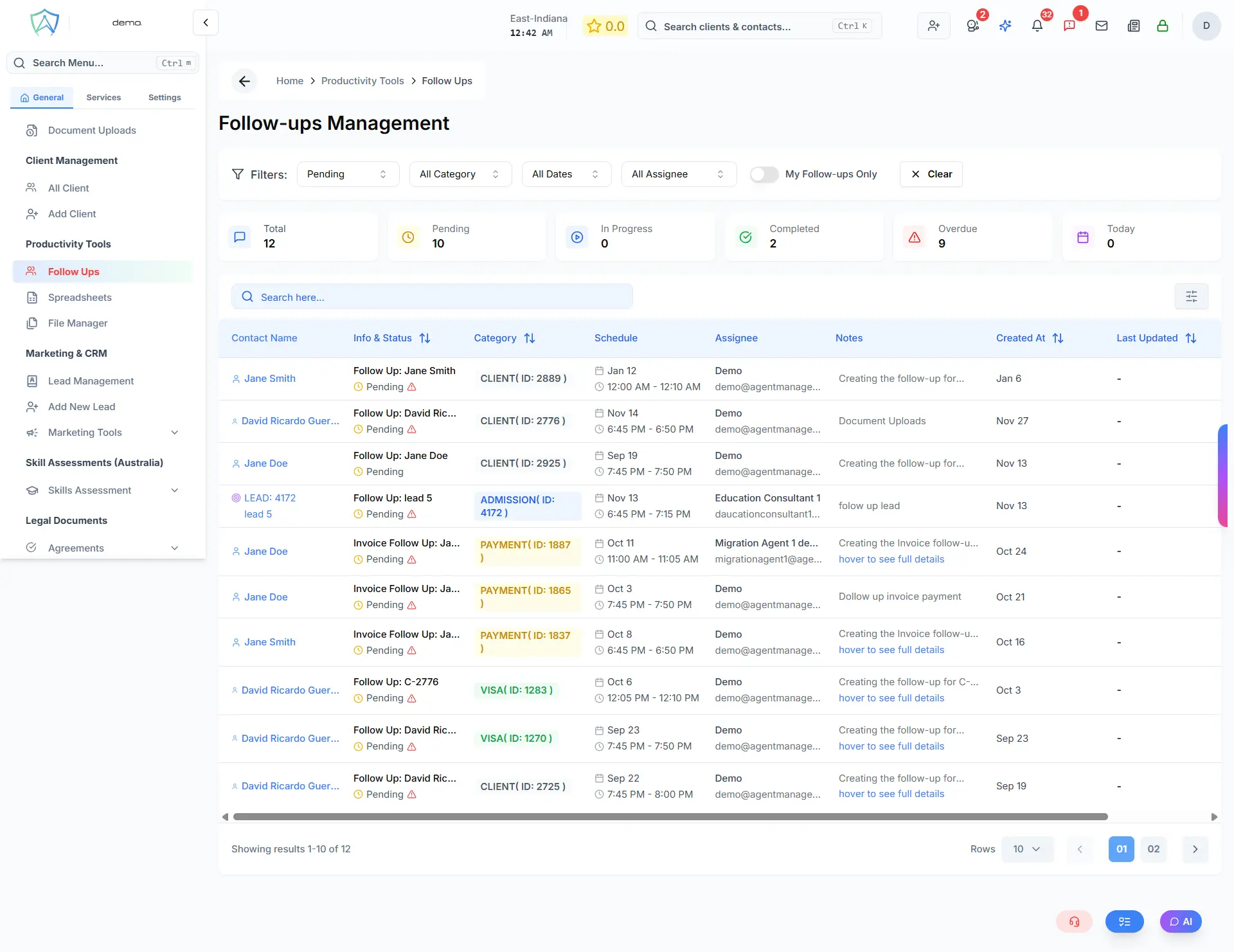
Overview
Follow-ups are created from within client profiles, visa applications, lead records, or other modules. This page provides a consolidated view of all follow-ups across your organisation, with filtering, status management, and overdue tracking.
Statistics Summary
At the top of the page, six summary cards show real-time counts:
| Card | Description |
|---|---|
| Total | Total number of follow-ups |
| Pending | Follow-ups not yet started |
| In Progress | Follow-ups currently being actioned |
| Completed | Follow-ups that have been completed |
| Overdue | Follow-ups past their scheduled end time |
| Today | Follow-ups scheduled for today |
Follow-Up List
| Column | Description |
|---|---|
| Contact Name | The linked client or CRM lead — click to navigate to their profile |
| Info & Status | Follow-up name, current status icon, and overdue warning (if applicable) |
| Category | Colour-coded badge showing the category (e.g. Visa, Admission, Lead, Payment, Consultation) along with the linked entity ID |
| Schedule | Scheduled start date and time range |
| Assignee | The staff member responsible — shows name and email |
| Notes | Description and follow-up details — hover to see full content |
| Created At | Date the follow-up was created |
| Last Updated | Date and time the record was last modified |
Follow-Up Statuses
| Status | Meaning |
|---|---|
| 🟡 Pending | Scheduled but not yet started |
| 🔵 In Progress | Currently being actioned |
| 🟢 Completed | Finished successfully |
| 🔴 Cancelled | Cancelled and no longer active |
If a follow-up's scheduled end time has passed and it is not completed or cancelled, it is flagged as Overdue with a red warning icon.
Filtering
Use the filter bar to narrow results:
| Filter | Options |
|---|---|
| Status | All / Pending / In Progress / Completed / Cancelled |
| Category | All / dynamically populated from existing follow-up categories |
| Date Range | All Dates / Today / Tomorrow / This Week / Overdue |
| Assignee | All / specific staff member (admin roles only) |
| My Follow-ups Only | Toggle to show only follow-ups assigned to you (admin roles only) |
Users with the user role are automatically filtered to see only their own follow-ups.
Click Clear to reset all filters.
Row Actions
Each row in the list has the following actions:
| Action | Description |
|---|---|
| Status dropdown | Change the follow-up status directly from the list (Pending → In Progress → Completed → Cancelled) |
| Delete | Permanently delete the follow-up — only available to the staff member who created it |
Navigating to the Contact
Click the Contact Name in any row to be taken directly to:
- The client profile (if linked to a client)
- The CRM lead profile (if linked to a CRM contact)
Creating Follow-Ups
Follow-ups cannot be created directly from this page. They are created from within individual records, such as:
- A client's profile
- A visa application row (via the action menu)
- A lead record in CRM