Client Check-Ins
The Client Check-Ins module is a walk-in enquiry system for prospective clients visiting your office. When a visitor arrives, they self-check-in using a link provided at reception. Staff can then record a meeting summary against the visit, and convert the visitor into a full client or a CRM lead directly from the list.
How It Works
- Reception or branch staff share a check-in link (containing a secure token) with the visiting client
- The visitor opens the link and fills in their own check-in form
- On submission they are redirected to a confirmation screen
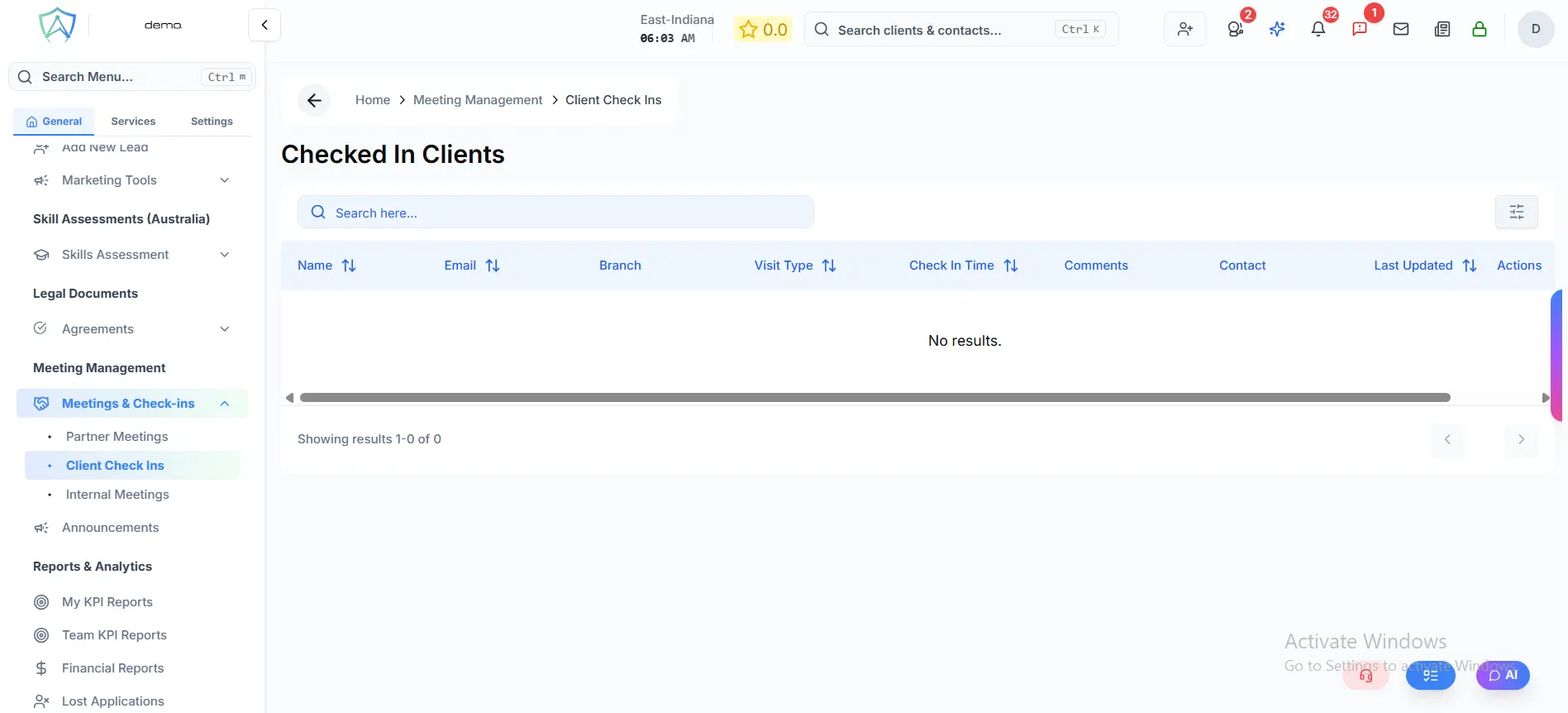
- The visit appears in the Checked In Clients list in the portal
- Staff can open the visit record, add an internal meeting summary, and optionally convert the visitor to a client or lead
The same check-in form is also used for event registrations. When a visitor checks in via an event link, their check-in type is automatically set to event and their details are registered against that marketing event.
Checked In Clients List
The list shows all client check-ins for your organisation, sorted by most recent by default:
| Column | Description |
|---|---|
| Name | Visitor's full name — click to open the full visit record |
| Visitor's email address | |
| Branch | The branch they checked in at |
| Visit Type | The reason for the visit (e.g. enquiry, event) |
| Check In Time | Date and time of arrival |
| Comments | Purpose of visit provided by the visitor |
| Contact | Visitor's phone number |
| Last Updated | Date and time the record was last changed |
Use the search bar to find a visitor by name. You can also sort any column and export the list to CSV.
Client Check-In Form (Visitor Side)
The visitor fills in this form via the check-in link:
| Field | Required | Description |
|---|---|---|
| Branch | Yes | The branch they are visiting — pre-filled if encoded in the link |
| Who do you want to Meet? | Yes | Select a staff member available at that branch — options load after a branch is selected |
| Given Name | Yes | Visitor's first name |
| Last Name | Yes | Visitor's last name |
| Yes | Visitor's email address | |
| Phone Number | No | Visitor's contact number |
| Purpose of Visit | No | Brief description of why they are visiting |
If no staff members appear in the Who do you want to Meet? field after selecting a branch, no meeters are configured for that branch. Contact your administrator to set them up.
Visit Detail Record (Staff Side)
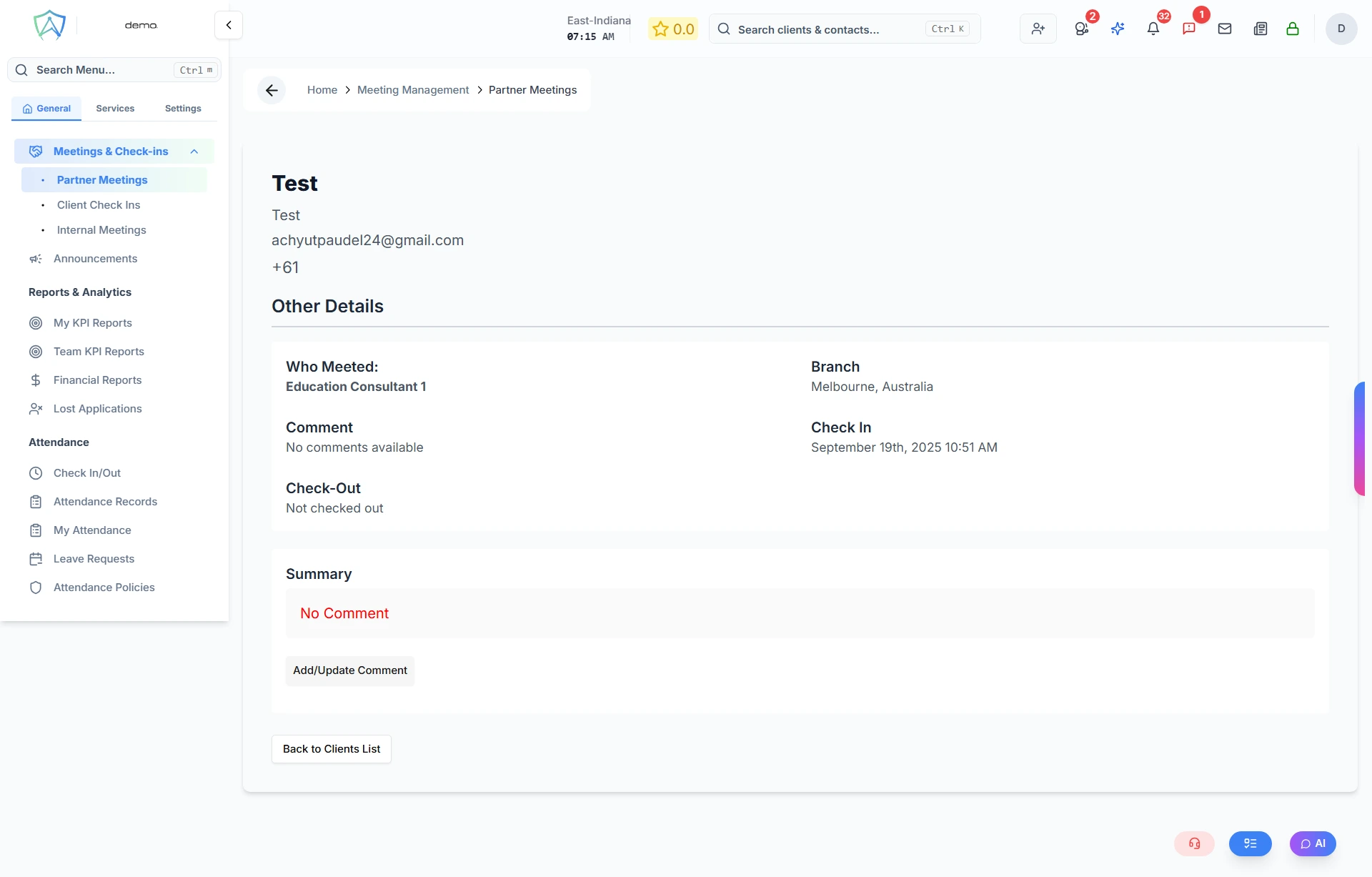
Click any visitor's name in the list to open their full visit record. The detail page shows:
| Field | Description |
|---|---|
| Who Meeted | The staff member who received the visit |
| Branch | Where the visit took place |
| Visit Type | Type of check-in (enquiry, event, etc.) |
| Purpose of Visit | The visitor's stated reason |
| Check In Time | Timestamp of arrival |
Meeting Summary
Staff can add or update an internal meeting summary for each visit:
- Click Add/Update Summary
- Write your internal notes about the meeting in the rich-text editor
- Optionally click Use AI to Summarize to generate an AI-assisted summary from your notes
- If you like the AI result, click Use This Summary to apply it to the editor
- Click Submit to save
Submitting the meeting summary does not automatically record a check-out time for client check-ins (unlike partner check-ins). The summary is saved independently.
Converting a Visitor
Each row in the list has an action menu (the ⋯ button). From here you can convert the visitor without re-entering their details:
| Action | Where It Goes |
|---|---|
| Convert to Client | Opens the Add Client form pre-filled with the visitor's details |
| Convert to Lead | Opens the Add CRM Contact form pre-filled with the visitor's details |
This makes it easy to turn a walk-in enquiry into a tracked client or a sales lead in one step.