New Skill Assessment
SKILL_ASSESSMENTS permission required
Use this form to create a new skill assessment application for a client. You can access it from the Overview page via the Add New Application button, or from a client's profile.
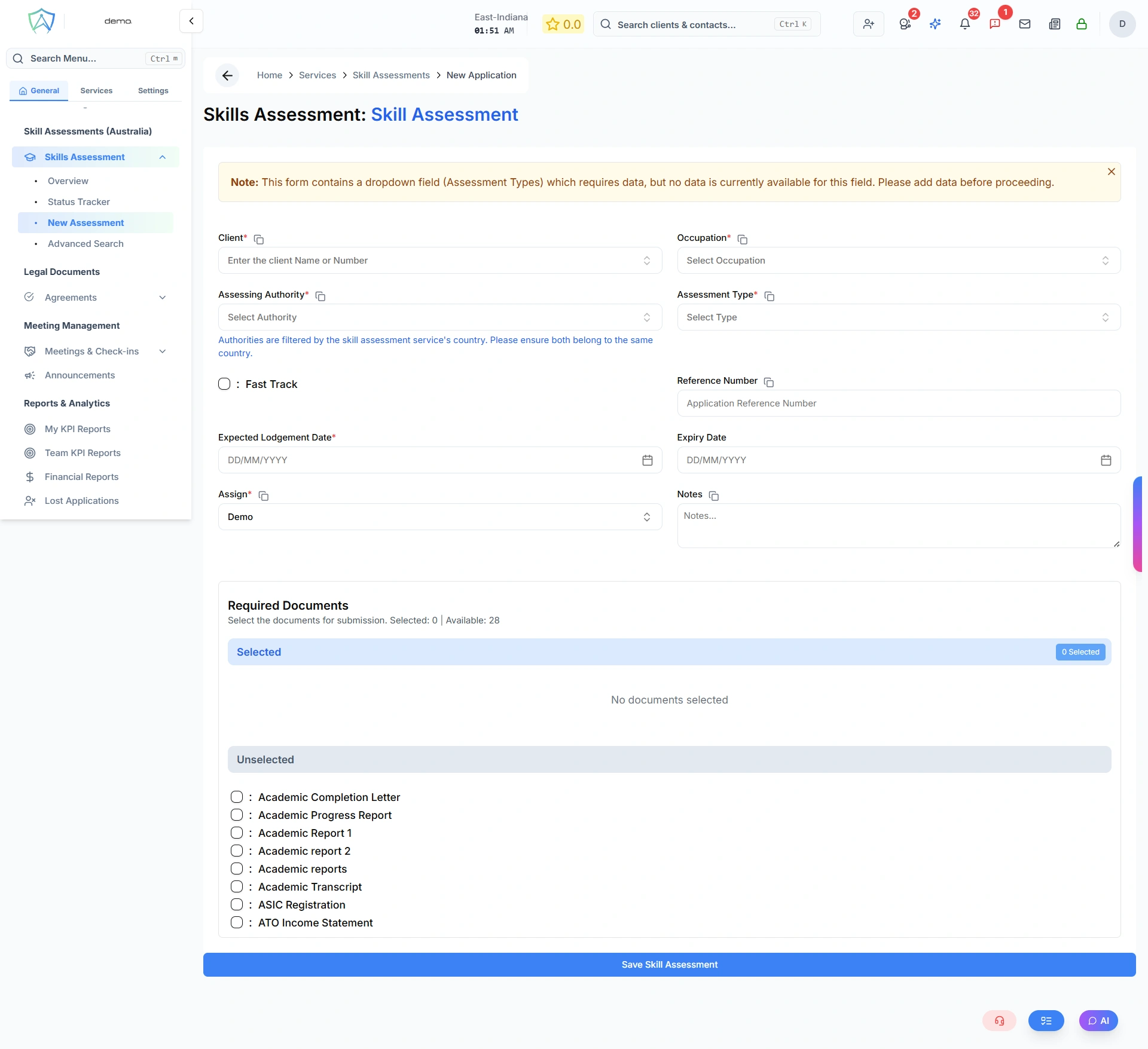
If you navigate here from a client's profile, the Client field is pre-filled automatically.
Application Details
All fields are on a single page. Required fields are marked with an asterisk.
| Field | Required | Description |
|---|---|---|
| Client | Yes | Search by client name or number. At least 3 characters needed to trigger results |
| Occupation | Yes | Search and select the occupation being assessed |
| Assessing Authority | Yes | Search and select the assessing body. Authorities are filtered by the service's country |
| Assessment Type | Yes | Select the assessment type — options load automatically once an authority is selected |
| Expected Lodgement Date | Yes | The planned date for lodging with the assessing body |
| Assign | Yes | The staff member responsible for this application |
| Fast Track | No | Tick if this is a fast-track application |
| Reference Number | No | External reference number from the assessing body |
| Expiry Date | No | When the assessment result will expire |
| Notes | No | Internal notes visible to staff only |
Assessing authorities are automatically filtered by the country configured for this service. Make sure the authority and the service are set to the same country.
Required Documents
Below the application fields is a Required Documents panel with two columns:
- Unselected — all available documents from your organisation's document library
- Selected — documents you have ticked for this application
Tick a document to move it from Unselected to Selected. Untick to move it back.
The total count of selected and available documents is shown at the top of the panel.
Saving the Application
Click the button at the bottom of the page to save.
| Scenario | Button Label |
|---|---|
| No documents selected | Save Skill Assessment |
| One or more documents selected | Save and Email Client for Required Documents |
What happens on save
- The assessment record is created and assigned to the first step of your service's workflow.
- A folder is created in Google Drive named
{Occupation}-SA-{ID}under the client's drive directory. - The selected documents are added to the application's document checklist.
- If documents were selected and the client has an email address on file, an automated email is sent to the client with a secure link to upload their documents.
- You are redirected to the Status Tracker filtered to the first workflow step.
The form requires the following to be configured before you can submit:
- At least one Client in the system
- Occupations configured in settings
- Assessing Authorities configured for this service's country
- Assessment Types linked to the selected authority
- A first workflow step configured for this service