Internal Meetings
The Internal Meetings module lets you schedule, track, and document meetings between staff members within your organisation. Each meeting has a topic, agenda, participants, supervisors, and a post-meeting summary.
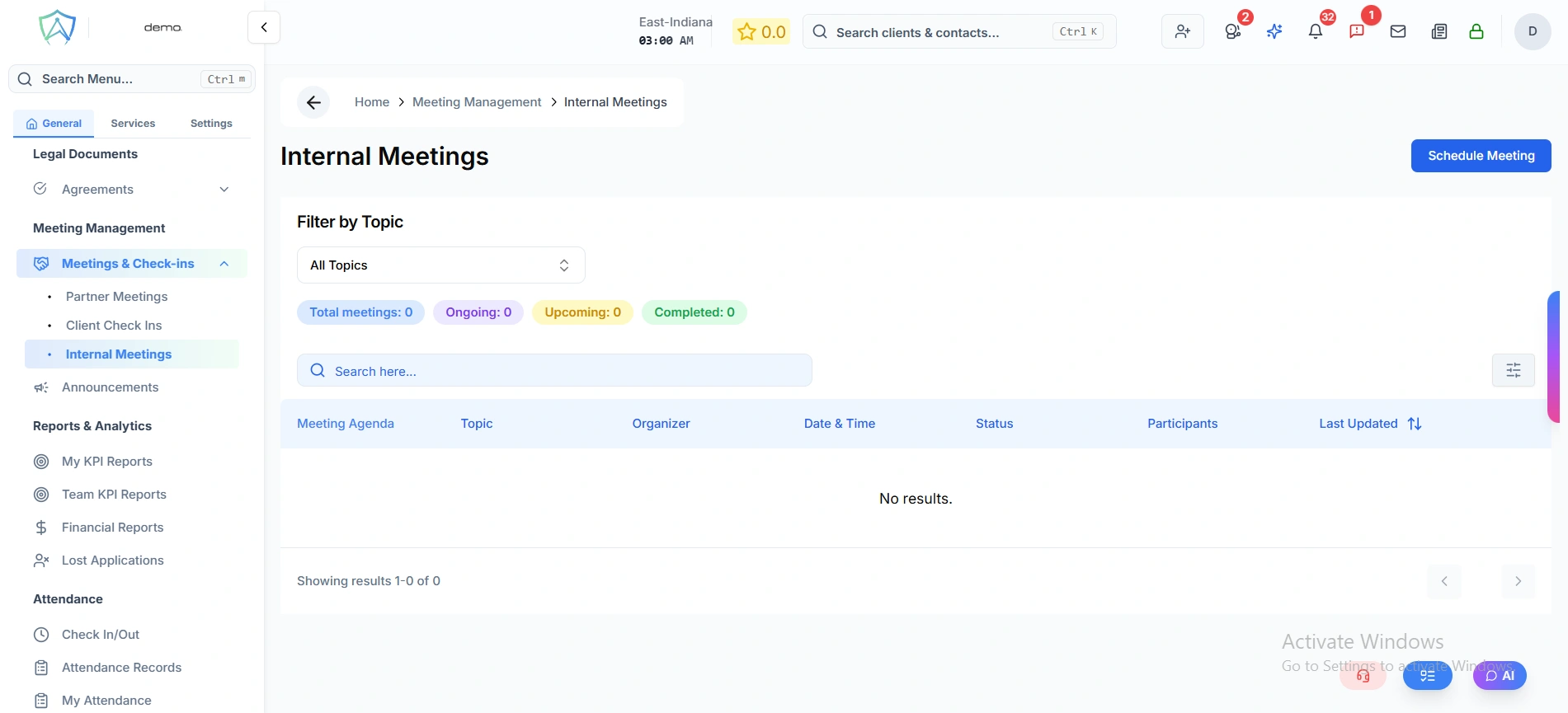
Meetings List
At the top of the list, summary badges show the current count of meetings by status:
| Badge | Description |
|---|---|
| Total Meetings | All meetings in the system |
| Ongoing | Currently in progress |
| Upcoming | Scheduled in the future |
| Completed | Past their end date |
Meetings Table
| Column | Description |
|---|---|
| Meeting Agenda | First 80 characters of the agenda — click to open the full meeting record |
| Topic | The meeting topic category |
| Organizer | The staff member who scheduled the meeting |
| Date & Time | Scheduled start date and time |
| Status | Upcoming (yellow) or Completed (green) based on the end date |
| Participants | Number of attendees |
| Last Updated | Date and time the record was last changed |
Use the search bar to filter by text, and the Filter by Topic dropdown to narrow results to a specific topic.
Scheduling a Meeting
Click Schedule Meeting to open the form. The form is split into two stages — topic selection must be completed first before the rest of the form appears.
Step 1 — Select Topic
| Field | Required | Description |
|---|---|---|
| Select Topic | Yes | Choose an existing topic from the list |
If the topic you need does not exist, click New Topic to create one on the spot via a quick dialog.
The rest of the form only appears once a topic is selected.
Step 2 — Meeting Setup
Meeting Schedule
| Field | Required | Description |
|---|---|---|
| Start Date & Time | Yes | When the meeting begins |
| End Date & Time | Yes | When the meeting ends |
Attendees
| Field | Required | Description |
|---|---|---|
| Select Participants | Yes | One or more staff members attending the meeting |
| Select Supervisors | Yes | Supervisors overseeing the meeting — global managers are pre-selected automatically |
Meeting Agenda
| Field | Required | Description |
|---|---|---|
| Meeting Agenda | Yes | Full agenda text, minimum 20 characters. One item per line for a structured display |
Click Schedule Meeting to save. An email invitation is automatically sent to all participants and supervisors with the date, start time, end time, and timezone.
Meeting Detail Record
Click any meeting row to open the full record. The detail page shows:
- Organizer — the staff member who created the meeting
- Started At / Ended At — full date and time
- Agenda — displayed as a structured list if multiple lines were entered
- Participants — list of all attendees with name and email
- Supervisors — list of supervising staff with name and email
- Meeting Summary — post-meeting notes (see below)
Status badge shows Completed once the end date has passed, otherwise Scheduled.
Meeting Summary
After the meeting has taken place, a summary can be recorded on the detail page:
- Click Add Summary
- Write your post-meeting notes in the rich-text editor
- Optionally click Use AI to Summarize to generate an AI-assisted summary from your notes
- If you like the result, click Use to apply it to the editor
- Click Save Summary to save
The Add Summary button is only shown if no summary has been recorded yet. Once saved, the summary is directly editable from the same section.