Check In / Out
ATTENDANCE permission required
The Check In / Out page is your daily attendance record. Staff use this page to record when they arrive and leave work each day.
Note: This page is accessible at
/attendance/record/check-in.
How to Check In
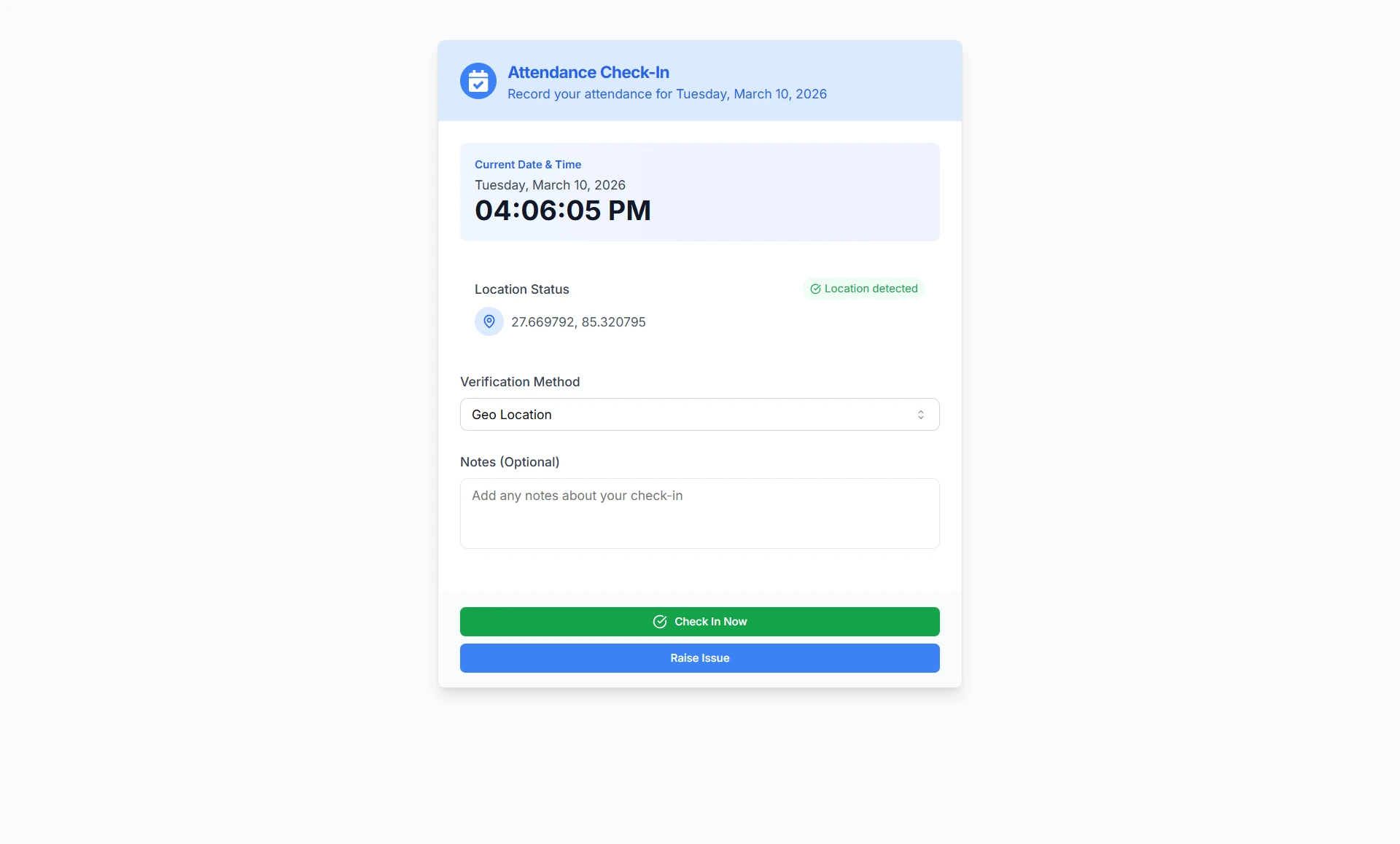
- Navigate to Check In / Out
- Your current date and time will be displayed
- Enable location services when prompted by your browser - this is required for check-in
- Wait for your location to be detected (you'll see "Location detected" with a green indicator)
- Select your Verification Method:
- Geo Location - System will verify you're at an approved office location
- Manual - For administrative or special cases
- (Optional) Add any notes about your check-in
- Click Check In Now
- Your check-in time is recorded
Location Detection
- The system automatically captures your GPS coordinates (latitude and longitude)
- If you see "Location unavailable", check your browser's location permissions
- Location must be successfully detected before you can check in
Verification Methods
Geo Location Verification:
- You must be within the allowed radius of a registered Office Location
- The system finds the closest office location and verifies you're within its defined radius
- If you're not within range of any valid location, check-in will fail with an error message
- This is the default and recommended verification method
Manual Verification:
- Allows check-in without location radius verification
- Location coordinates are still captured but not validated against office locations
- Typically used for special circumstances or remote work arrangements
How to Check Out
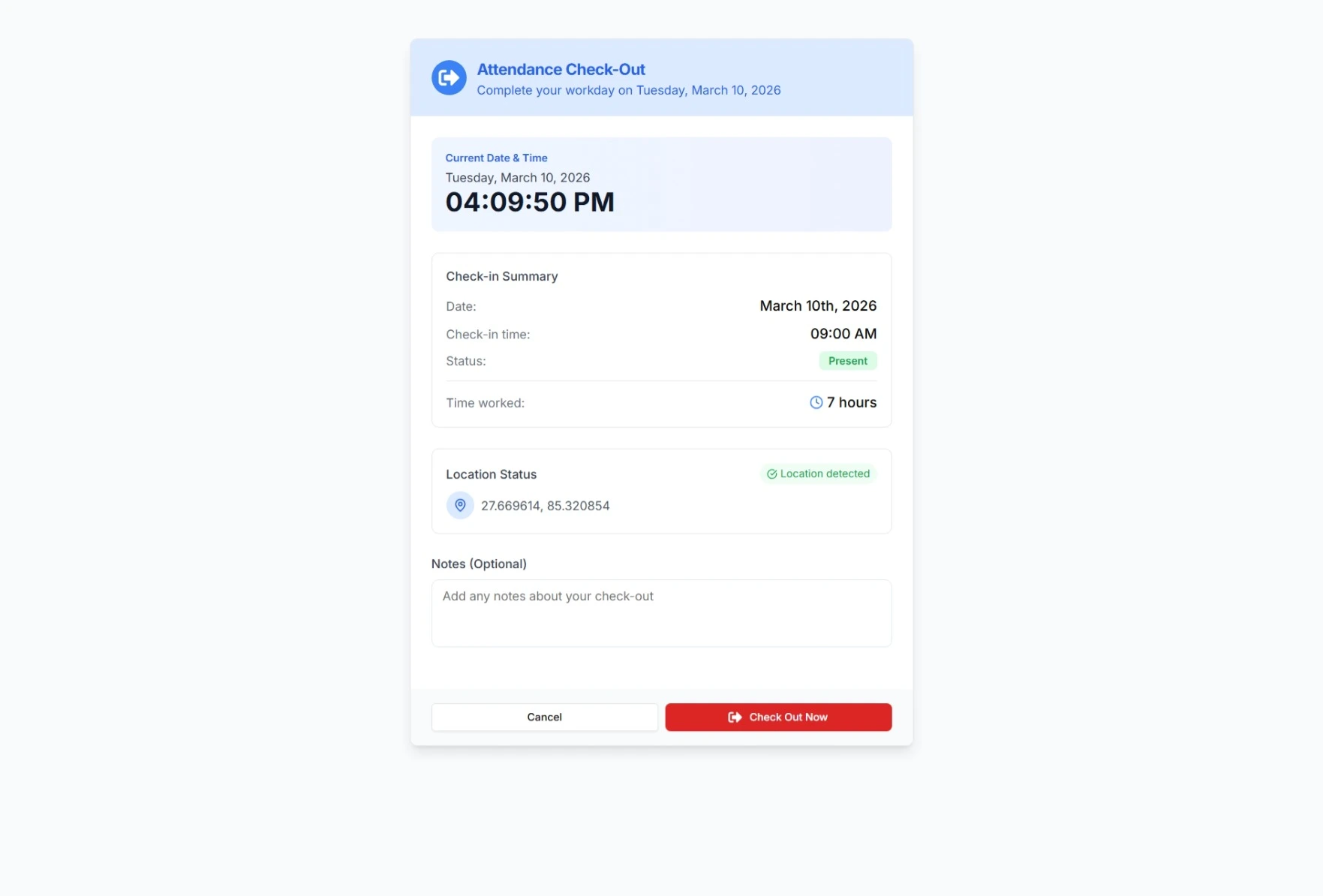
When you check out, you'll see a summary of your check-in:
- Check-in date and time
- Office location (if applicable)
- Current attendance status
- Total time worked so far
To complete check-out:
- Return to the Check In / Out page (or navigate to
/attendance/record/check-out/[record-id]) - Enable location services - location is required for check-out
- Wait for location detection
- (Optional) Add or update notes about your workday
- Click Check Out (in red)
- Your check-out time is recorded and total hours for the day are calculated
Important Notes About Check-Out
- If you already checked out today, you'll see a confirmation message with your check-out time
- You cannot check out twice in the same day
- Location coordinates are captured at check-out but not validated against office locations
Automatic Behaviors
Already Checked In
If you've already checked in today, the system automatically redirects you to the check-out page for that attendance record.
Missed Check-Out Protection
If you forgot to check out on a previous day:
- The next time you check in, the system automatically completes your previous check-out
- The auto check-out time is set to the same time as your check-in time from that day
- An activity log entry notes this was an automatic check-out
Office Locations
Office locations are configured by administrators and include:
- Location name
- GPS coordinates (latitude/longitude)
- Allowed radius (in meters)
- Associated branch
When using Geo Location verification, the system:
- Captures your current location
- Calculates the distance to all registered office locations
- Finds the closest location within its allowed radius
- Records that location with your attendance
If no valid location is found within range, check-in is blocked.
Attendance Status
Your attendance status is recorded when you check in. Current statuses include:
- Present - Normal attendance (currently the default for all check-ins)
- Late - Checking in after scheduled start time
- Absent - Not present
- Half-Day - Partial day attendance
- On Leave - Approved leave
- Work From Home - Remote work
Current Limitation: The system currently marks all check-ins as "Present" regardless of check-in time. Late arrival detection based on attendance policies is not yet implemented.
Troubleshooting
"Location required" Error
- Enable location services in your browser settings
- Grant location permission when prompted
- Ensure GPS is enabled on your device
"Not within range of any valid check-in location"
- You're too far from any registered office location
- Contact your supervisor or HR to:
- Verify the office location radius settings
- Request manual attendance entry
- Request a remote work arrangement
"Already checked in today"
- You can only check in once per day
- The system will redirect you to the check-out page
- If you see this in error, contact your supervisor
Can't Check Out
- Ensure location services are enabled
- Check that you're on the correct check-out page for today's attendance record
- If you've already checked out, you'll see a confirmation message
Related
- My Attendance - View your attendance history
- Attendance Records - Organization-wide attendance
- Office Locations - Manage check-in locations
- Attendance Policies - Configure attendance rules and shift times