Partners / External Check-Ins
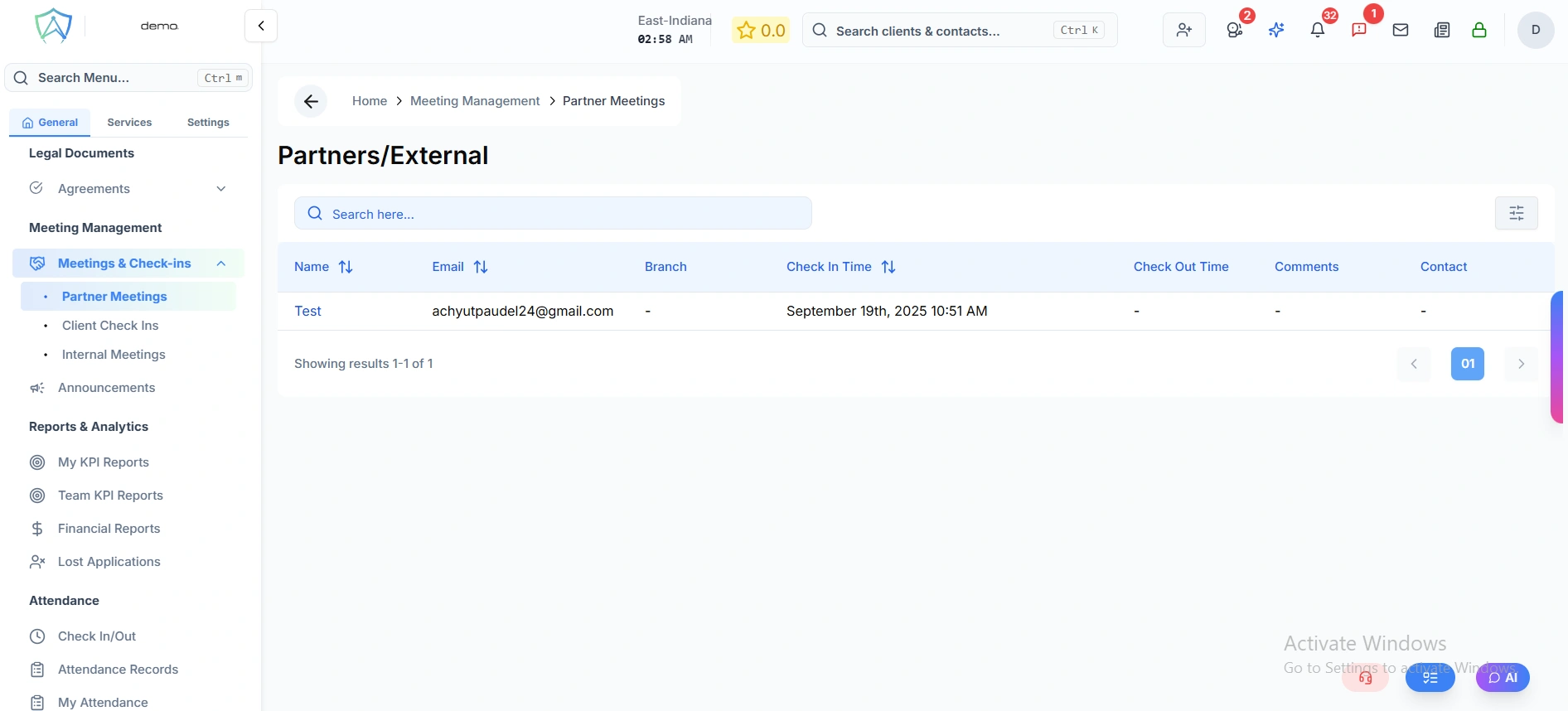
The Partners/External module is a walk-in check-in system for external visitors — such as education institute representatives, referral agents, and other partners. When a partner visits your office, they self-check-in using a link provided at reception, and staff can record notes and summaries against each visit.
How It Works
- Your reception or branch staff share a check-in link (containing a secure token) with visiting partners
- The partner opens the link and fills in their own check-in form
- On submission they are redirected to a confirmation screen
- The visit appears in the Partners/External list in the portal
- Staff can open the visit record, add an internal summary, and the check-out time is recorded automatically
Check-In List
The list shows all partner check-ins for your organisation:
| Column | Description |
|---|---|
| Name | The visitor's name — click to open the full visit record |
| The visitor's email address | |
| Branch | The branch they checked in at |
| Check In Time | Date and time of arrival |
| Check Out Time | Recorded when a staff member submits the internal summary |
| Comments | Purpose of visit provided by the visitor |
| Contact | Contact details on file |
Use the search bar to find a specific visitor by name.
Partner Check-In Form (Visitor Side)
The visitor fills in this form via the check-in link:
| Field | Required | Description |
|---|---|---|
| Branch | Yes | The branch they are visiting |
| Who do you want to Meet? | Yes | Select the available staff member — options load once a branch is selected |
| Name | Yes | Visitor's full name |
| Institute Name | Yes | The organisation or institution they represent |
| Yes | Visitor's email address | |
| Phone Number | No | Visitor's phone number |
| Purpose of Visit | No | Brief description of the reason for the visit |
If no staff members are shown in the Who do you want to Meet? field, no meeters are currently configured for that branch. Contact your administrator.
Visit Detail Record (Staff Side)
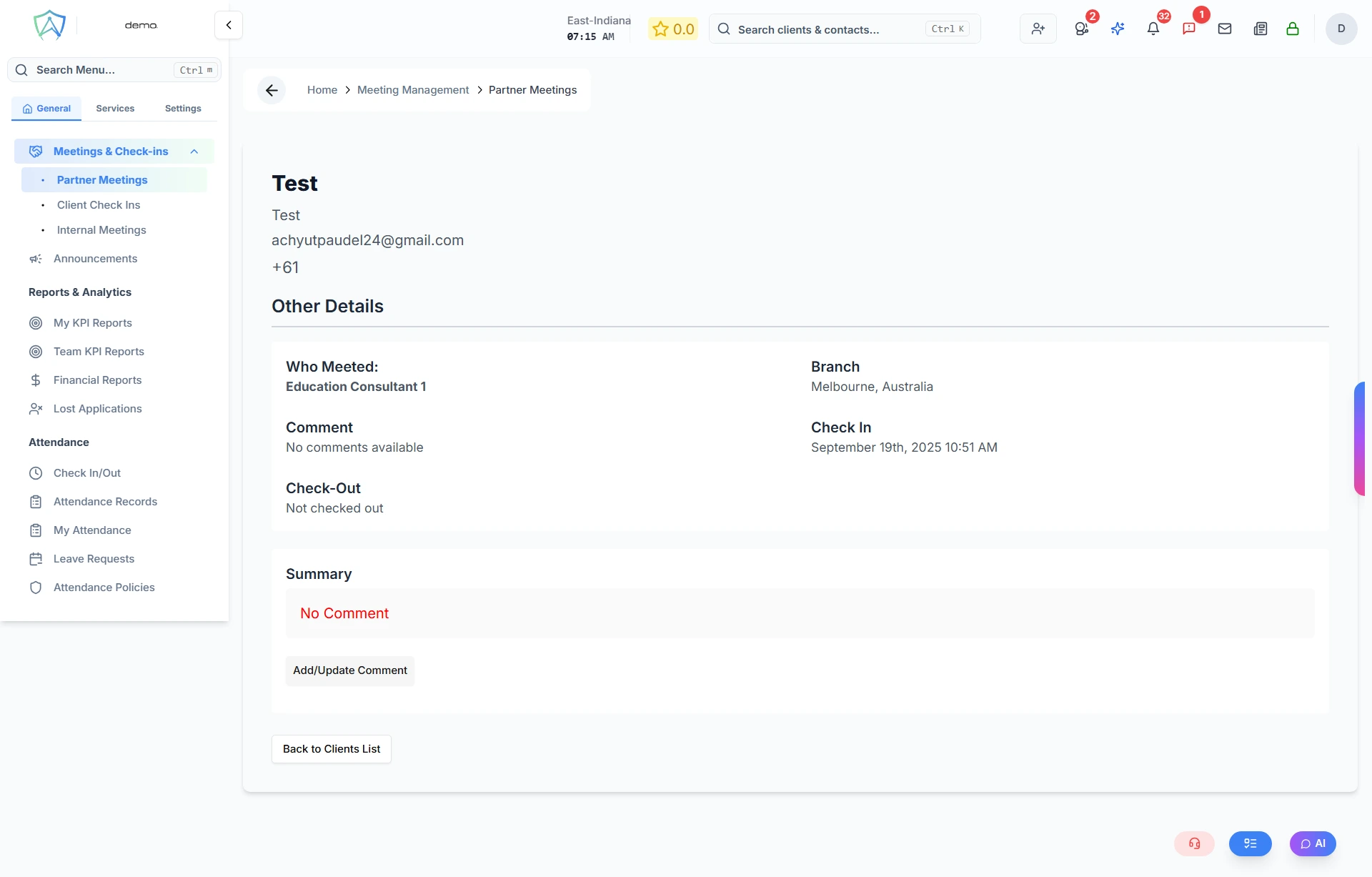
Click any visitor name in the list to open their visit record. The detail page shows:
- Who Meeted — the staff member who received the visit
- Branch — where the visit took place
- Comment — the visitor's stated purpose
- Check In / Check Out — timestamps for the visit
Internal Summary
Staff can add or update an internal summary note for each visit using the rich-text editor:
- Click Add/Update Comment
- Write your internal notes about the visit
- Optionally click Use AI to Summarize to generate an AI-assisted summary from your notes
- Click Use to apply the AI summary, then Submit to save
Submitting the internal summary automatically records the Check-Out Time for the visit.