My Attendance
ATTENDANCE permission required
My Attendance shows your personal attendance history and summary. Use it to review your check-in times, monitor your hours worked, track your attendance status, and raise issues if needed.
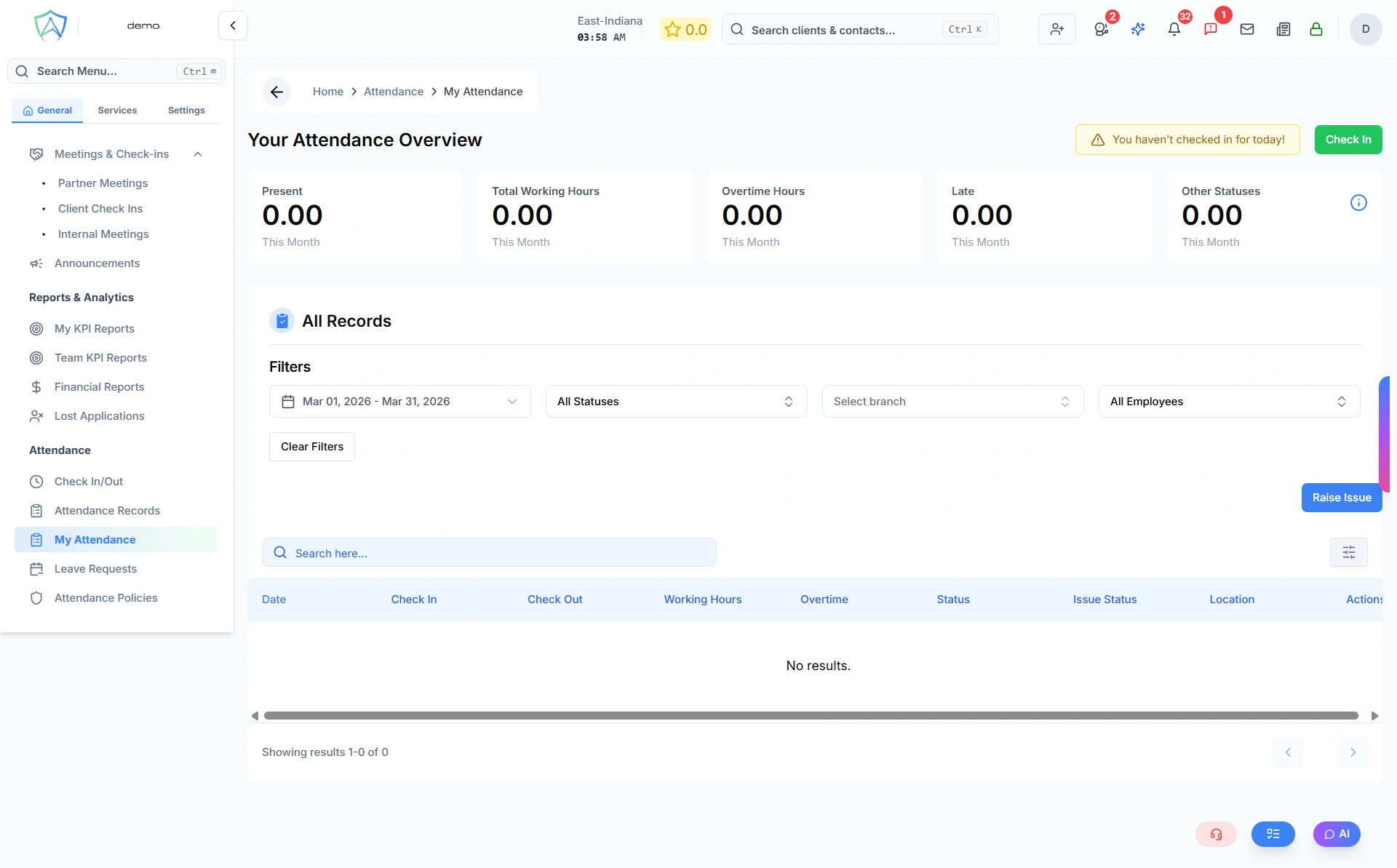
Check-In Status Alert
At the top of the page, if you haven't checked in for today, you'll see:
- 🟡 Yellow alert notification: "You haven't checked in for today!"
- Check In button that takes you directly to the check-in page
This ensures you never forget to record your attendance.
Summary Statistics
Five statistics cards show your attendance metrics for the current month:
Present
Number of days you successfully checked in and were marked as present.
Total Working Hours
Sum of all hours worked this month (calculated from your check-in and check-out times).
Overtime Hours
Total overtime hours worked beyond your scheduled shift times.
Late
Number of days you checked in after your scheduled start time.
Other Statuses
Combined count of all non-present statuses. Click the info icon (ℹ️) to see the breakdown:
- Late - Days marked as late arrival
- Half-Day - Partial day attendance
- On Leave - Approved leave days
- Work From Home - Remote work days
All statistics are automatically calculated for the current calendar month and update in real-time as you check in and out.
Filtering Your Records
Filter your attendance history by:
- Date Range - Select specific start and end dates
- Status - Filter by:
- All Statuses
- Present
- Late
- Absent
- Half Day
- On Leave
- Work From Home
- Branch - Filter by office branch
Click Clear Filters to reset all filters to default.
Attendance History Table
Your complete attendance history is displayed in a searchable, paginated table:
| Column | Description |
|---|---|
| Date | The working day (clickable - opens detailed view) |
| Check In | Your check-in time (12-hour format with AM/PM) |
| Check Out | Your check-out time (shows "-" if not checked out) |
| Working Hours | Total hours worked that day |
| Overtime | Overtime hours beyond your scheduled shift |
| Status | Present / Late / Absent / Half-Day / On Leave / Work From Home |
| Issue Status | Shows if you raised an issue (Dispute / Resolved) |
| Location | Office location where you checked in |
Table Features
- Search - Search across all fields
- Sort - Click column headers to sort
- Pagination - Navigate through multiple pages of records
- Click Date - Click any date to view detailed attendance information for that day
Attendance Detail Page
When you click on a date in the table, you'll see a detailed view showing:
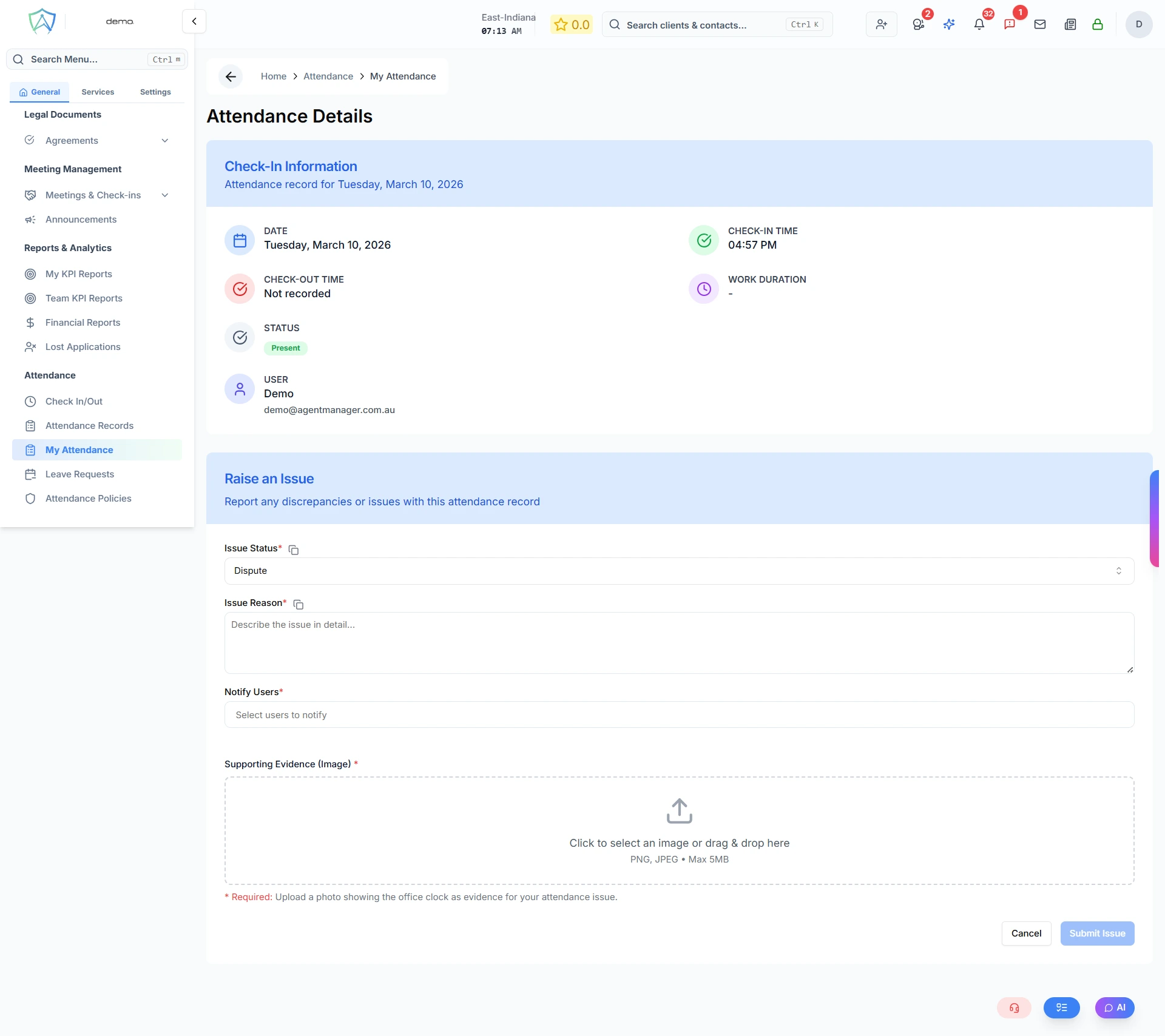
Check-In Details
- Exact check-in and check-out times
- Location information
- Coordinates (latitude/longitude)
- Device information
- Verification method
- Working hours and overtime
- Current status
- Any notes added
Raise Issue
If no issue exists for that day, you can raise one directly from the detail page. See the "Raise Issue" section below.
Issue Information
If you previously raised an issue for that day, you'll see:
- Issue status (Dispute/Resolved)
- Issue description
- Photo evidence (if uploaded)
- Notified users
- Issue submission timestamp
Raise Issue
If you encounter problems with your attendance record, click the Raise Issue button at the top of the page.
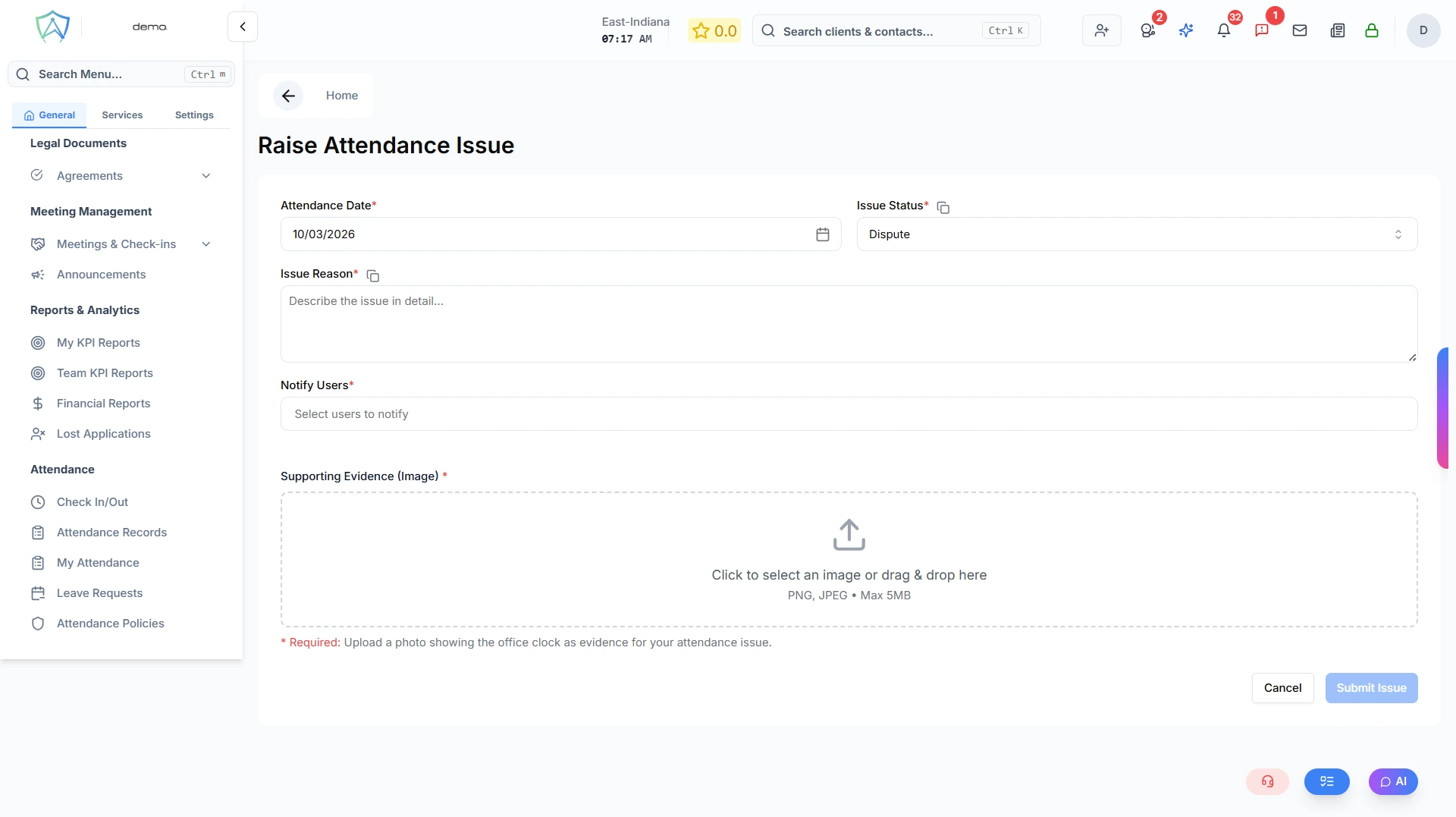
When to Raise an Issue
- Check-in/out failed due to technical problems
- Location services weren't working
- You were at the correct location but system didn't recognize it
- Time recorded incorrectly
- Any other attendance discrepancy
How to Raise an Issue
- Click Raise Issue button
- You'll be taken to the raise issue page
- Fill in the form:
- Select Date - Choose which day has the issue
- Select Record (if applicable) - If you checked in but there's a problem
- Issue Reason - Describe what went wrong
- Status - Choose "Dispute" (default)
- Upload Photo (optional) - Provide visual evidence
- Notify Users - Select managers/HR to notify about the issue
- Click Submit Issue
Your issue will be flagged in the system and notifications will be sent to the selected managers. The issue status will appear in your attendance table.
You can raise issues for:
- Existing attendance records (if there's a problem with a check-in you already completed)
- Missing records (if you couldn't check in at all)
Related Pages
- Check In / Out - Daily attendance check-in/out
- Attendance Records - Organization-wide view (managers)
- Leave Requests - Apply for and manage leave
- Attendance Policies - View your assigned attendance policy