Australian Visas
An Australian visa is an official authorisation that allows a person to enter, stay in, or work in Australia for a specific purpose and period. The portal helps you manage the full lifecycle of a client's visa application — from the initial enquiry through to a final decision — all in one place.
It has four sub-pages: Overview, Status Tracker, New Application, and Advanced Search.
Overview
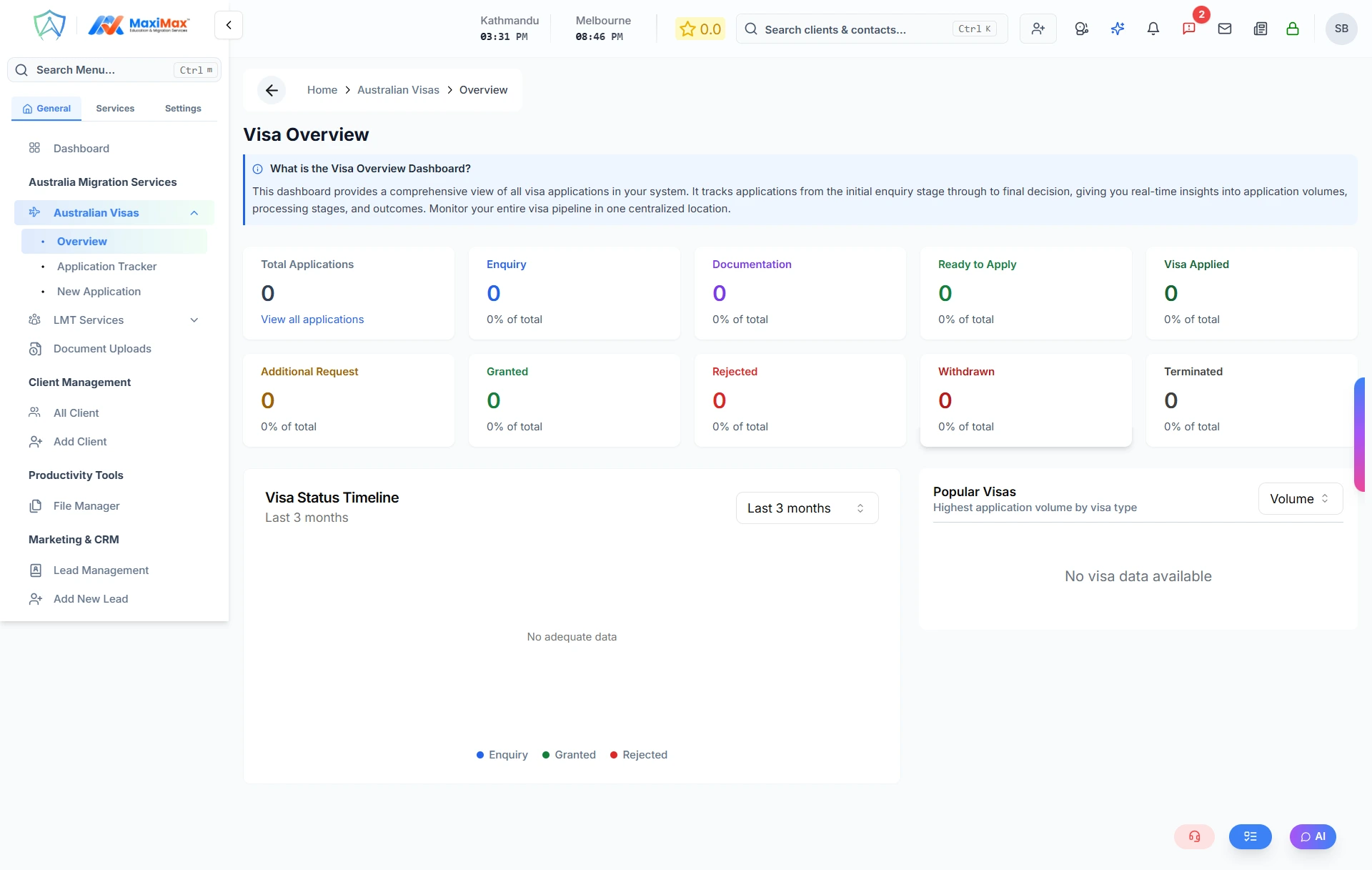
The Overview page gives you a real-time snapshot of your entire visa pipeline across all clients and applications.
Status Summary Cards
Across the top of the page are clickable cards — one for each stage. Clicking any card takes you directly to the filtered tracker showing only applications at that stage.
| Status | Colour | What it means |
|---|---|---|
| Total Applications | — | All visa applications combined |
| Enquiry | 🔵 Blue | Client has expressed interest — initial stage |
| Documentation | 🟣 Violet | Gathering and submitting required documents |
| Ready to Apply | 🟢 Green | All prerequisites complete, ready to lodge |
| Visa Applied | 🟢 Dark Green | Application submitted to the authority |
| Additional Request | 🟡 Yellow | Authority has requested further documents or info |
| Granted | 🟢 Bright Green | Visa approved |
| Rejected | 🔴 Red | Application denied |
| Withdrawn | 🔴 Dark Red | Applicant withdrew before a decision |
| Terminated | ⚫ Grey | Application discontinued |
Trend Chart
A line chart below the cards shows your Enquiry, Granted, and Rejected application counts over time. You can filter by the last 7 days, 30 days, or 90 days to spot trends in your visa pipeline.
Popular Visas Breakdown
A table on the right shows which visa types have the highest application volume in your organisation. You can switch the sort between:
- Volume — visa types with the most applications at the top
- Approval Rate — visa types with the highest grant rate at the top
Each row shows the visa name, application count out of total, and the approval rate percentage.
Status Tracker (Applications)
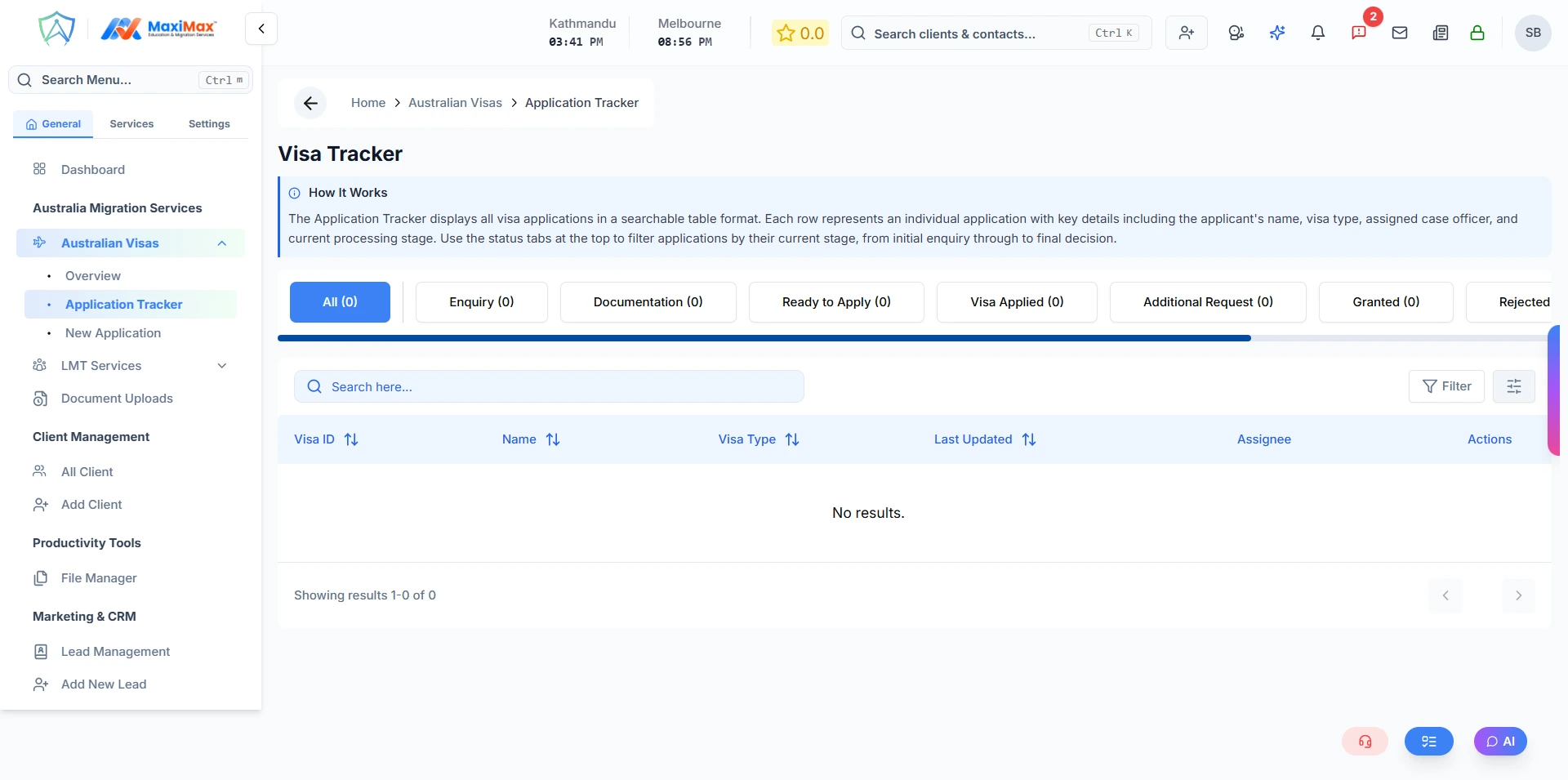
The Tracker is a full list of all visa applications in your organisation. You reach it by clicking any of the status cards on the Overview page, or by navigating to it from the sidebar (the Status Tracker sub-link).
- When you click Total Applications, the tracker shows all applications regardless of status
- When you click a specific status card (e.g. Enquiry), the tracker pre-filters to show only applications at that stage
- You can search, filter, and manage applications from this list
- Clicking any application row opens the full application details page
New Application
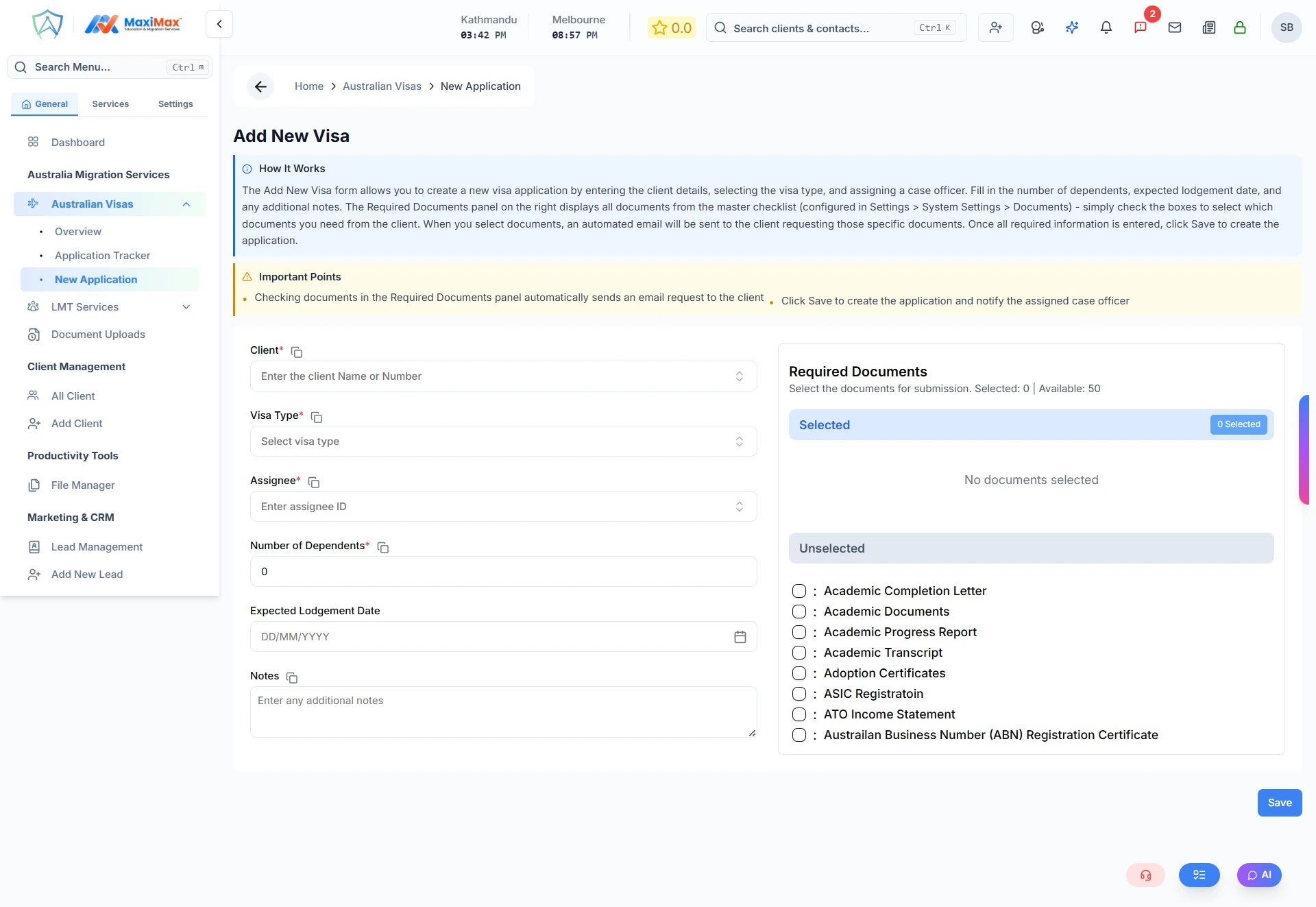
The New Application page is used to register a new visa application for an existing client. It is opened from the New Entry sub-link under the visa service in the sidebar.
Form Fields
| Field | Required | Notes |
|---|---|---|
| Client | ✅ | Search by name — type at least 3 characters to find the client. Pre-filled if opened from a client's profile. |
| Visa Type | ✅ | The specific visa subclass (e.g. Skilled Independent, Partner Visa). Searchable by name. |
| Assignee | ✅ | The staff member responsible for managing this application |
| Expected Lodgement Date | ✅ | The planned date to submit the application — cannot be a past date |
| Notes | — | Any internal notes about this application |
Required Documents
The right side of the form shows your organisation's document checklist. You tick each document that this particular application requires. Documents are split into two lists:
- Selected — documents you have ticked as required for this application
- Unselected — remaining documents not yet selected
What Happens After Submitting
- The visa application is created and placed at the first stage of the workflow automatically
- A dedicated OneDrive folder is created for this application, named after the visa type and linked to the client's folder
- If any documents were selected in the checklist, an email is automatically sent to the client with a secure link asking them to upload the required documents
- You are taken directly to the new application's details page to continue working on it
If you selected documents in the checklist, the submit button label changes to "Save and Email Client for Documents" so you know the client will be notified automatically.
Advanced Search
The Advanced Search page lets you run detailed, multi-condition queries across all visa applications in your organisation — going far beyond the basic filters available in the Status Tracker.
You can combine filters such as visa type, status, assigned agent, branch, lodgement date range, expected decision date, and more to find exactly the applications you need. See the Advanced Search page for a full breakdown of all available filters and how to use them.